Project Templates
Project templates let you bootstrap new projects from approved blueprints and share repeatable setups with your organization. Use a template when you want a pre-built combination of workflows, gateways, serverless apps, and database tables without wiring everything manually.
Create a project from a template
-
Go to Projects and click Create project.
-
Choose Use Template (alongside Manual Setup and AI-Assisted).
-
Browse the template gallery. Search by title or filter by tag.
-
Click a template to start provisioning.
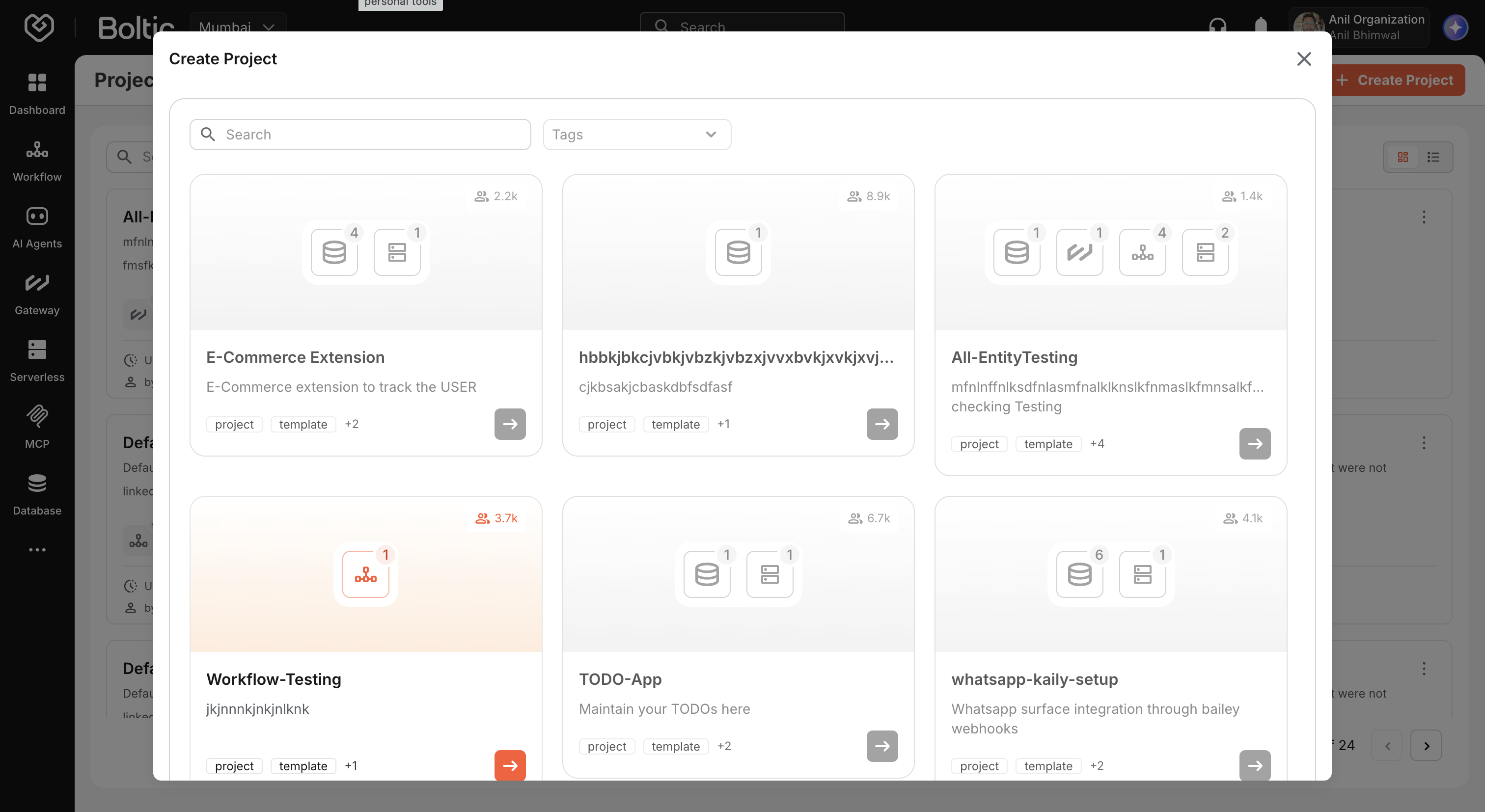
Boltic creates the project and attaches template modules in the background. You are redirected to the new project details page, where a progress banner tracks module attachment status.
Serverless configuration
Some templates include serverless apps that require environment variables or secrets before deployment. When you select such a template, a configuration modal opens so you can provide:
-
Environment variables per serverless app
-
Secrets per serverless app
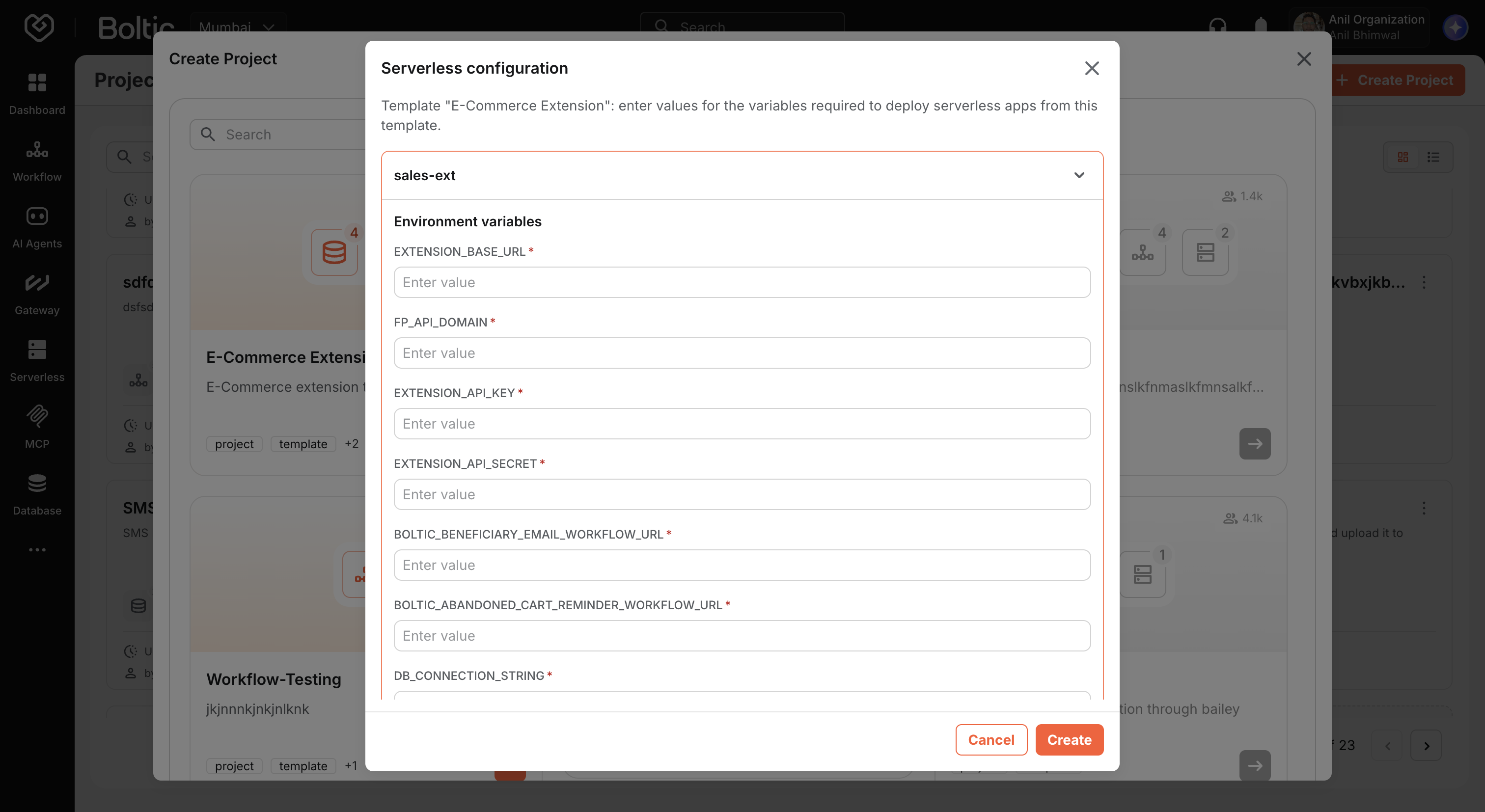
Submit the form to continue. Templates without serverless variables start immediately.
Template job progress
While modules are being attached, the project details page shows a progress banner with:
- Overall job status (
queued,in_progress,success,partial_success, orfailed) - Per-module status for each entity type being linked
- Retry for failed modules that are eligible to retry
- Option to dismiss the banner when finished
The URL may include ?template_job_id=<id> while the job runs. This parameter is cleared automatically when the job completes.
Each project template can only be used once per organization. Templates you have already used appear as unavailable in the gallery.
If template creation fails
| Issue | What to do |
|---|---|
| Template already used | Choose a different template or use Manual Setup. |
| Partial module failure | Use Retry on the progress banner for failed modules, or add missing entities manually from Managing entities. |
| Missing serverless config | Complete the environment/secrets modal before the job starts. |
Publish a project as a template
Turn a working project into a reusable blueprint for your team.
Requirements
A project can be published as a template only when:
- It contains at least one entity
- All entities are one of: Workflow, Gateway, Serverless, or Database Tables
- It does not include MCP or AI Agent items (these types are not supported in project templates today)
Steps
- On the Projects listing, open the context menu on a project card or table row.
- Click Publish as a template.
- Review the confirmation: "Send for review?"
- Click Send for review.
Your project is submitted as a template draft for administrator review. You can continue working on the project while it is reviewed. After approval, the template appears in the Use Template gallery for your organization.
Publishing does not instantly make a template available to everyone. An administrator must approve the template before others can use it from the template gallery.
When to use templates
| Scenario | Recommended approach |
|---|---|
| Standard customer onboarding stack (workflow + gateway + tables) | Publish once, reuse via Use Template |
| One-off experiment or custom mix of entities | Manual Setup |
| Link only existing resources you already built | Manual Setup with Select Entities |
| Project includes MCP or AI agents | Manual Setup — template publish does not support these types |
Next steps
- Creating a project — Manual setup wizard
- Project details and tabs — Track template job progress on the details page
- Managing entities — Add or fix entities after template provisioning