Project Details and Tabs
After you create or open a project, you land on the project details page. This page is the central hub for everything in the project: metadata, team documentation, and per-entity listings.
Page header
The header shows:
- Back navigation — Return to the Projects listing.
- Project name — Click to edit inline. Changes save immediately when you confirm a new name (3–50 characters).
- Delete — Open the delete project flow.
- Add entity — Open the menu to add a new or existing resource (see Managing entities).
Template job progress banner
If you created the project from a project template, a progress banner appears at the top of the details page while modules are attached in the background.
The banner shows:
- Job status:
queued,in_progress,success,partial_success, orfailed - How many modules completed vs. failed
- Per-module errors with an option to view full error text
- Retry for failed modules that can be retried
- Dismiss when you are done reviewing the outcome
The URL includes ?template_job_id=<id> while the job is active. It is removed automatically when the job finishes successfully.
Tab navigation
Tabs appear below the header. The set of tabs depends on which entity types are linked to the project—tabs for empty entity types are hidden until you add at least one resource of that type.
| Tab | Always visible | Purpose |
|---|---|---|
| Home | Yes | Summary, description, and quick entity count shortcuts. |
| Overview | Yes | Markdown readme for team collaboration. |
| Workflow | When workflows exist | List and manage workflows in this project. |
| AI Agents | When agents exist | List AI agents (opens Kaily console for details). |
| Gateway | When gateways exist | List and manage API gateways. |
| Serverless | When serverless apps exist | List and manage serverless applications. |
| MCP | When MCP servers exist | List and manage MCP servers. |
| Database Tables | When tables exist | List and manage database tables. |
| Analytics | Yes (disabled) | Coming soon—aggregated project metrics. |
| Add (+) | Yes | Shortcut menu to add a new entity type. |
The URL includes a tab query parameter (for example, ?tab=workflows) so you can bookmark or share a specific tab.
Home tab
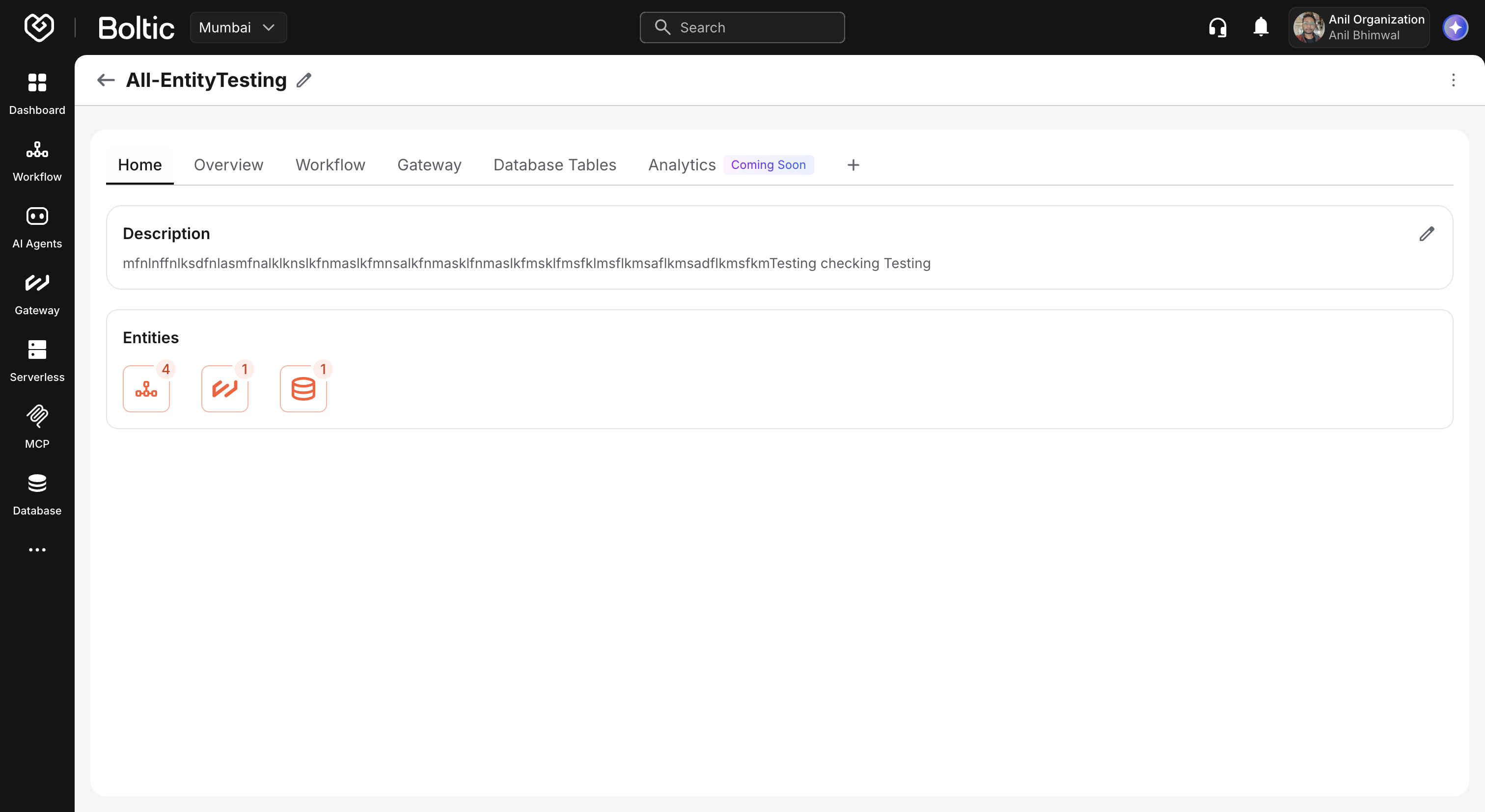
The Home tab is the default landing view.
Description
Your project description appears here. Click Edit to update it in a modal. The description must not be empty when saved.
Entity shortcuts
Icons for each linked entity type show counts (for example, 3 workflows). Click an icon to jump to that entity's tab.
If the project has no entities yet, the Home tab encourages you to add resources via Add entity.
 |
|---|
Overview tab
The Overview tab holds a markdown readme for your team—architecture notes, links, runbooks, or onboarding instructions.
View mode
When a readme exists, Boltic renders the markdown for reading.
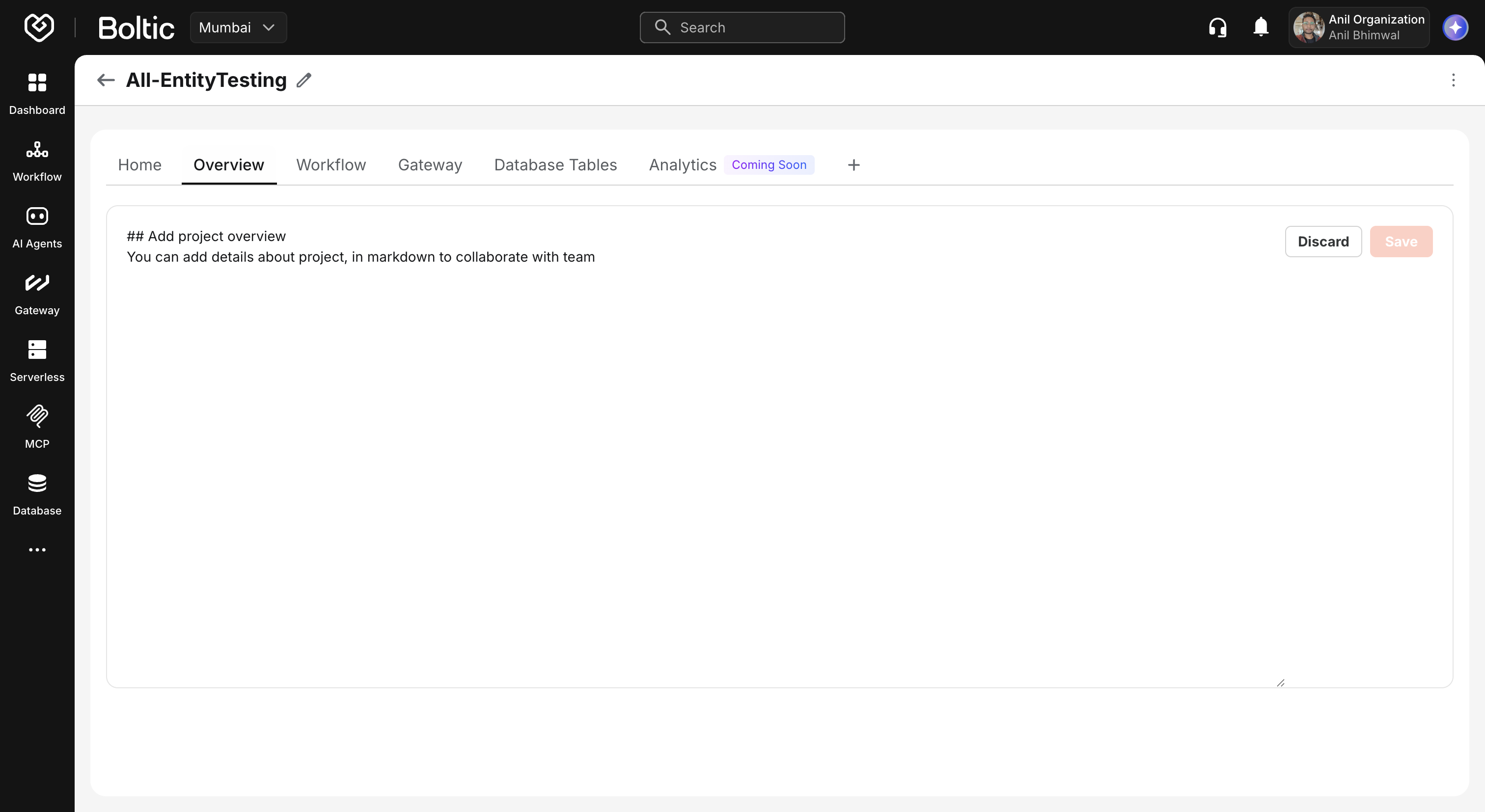
Edit mode
- Click Edit to open the markdown editor.
- Write or paste content using standard markdown (headings, lists, links, code blocks).
- Click Save to persist, or Discard to cancel.
If no readme exists, a placeholder suggests adding project overview content. The default starter text is:
## Add project overview
You can add details about project, in markdown to collaborate with team
Use the Overview tab as the single source of truth for how the project's workflows, gateways, and tables fit together—especially helpful for handoffs and new teammates.
 |
|---|
Entity tabs
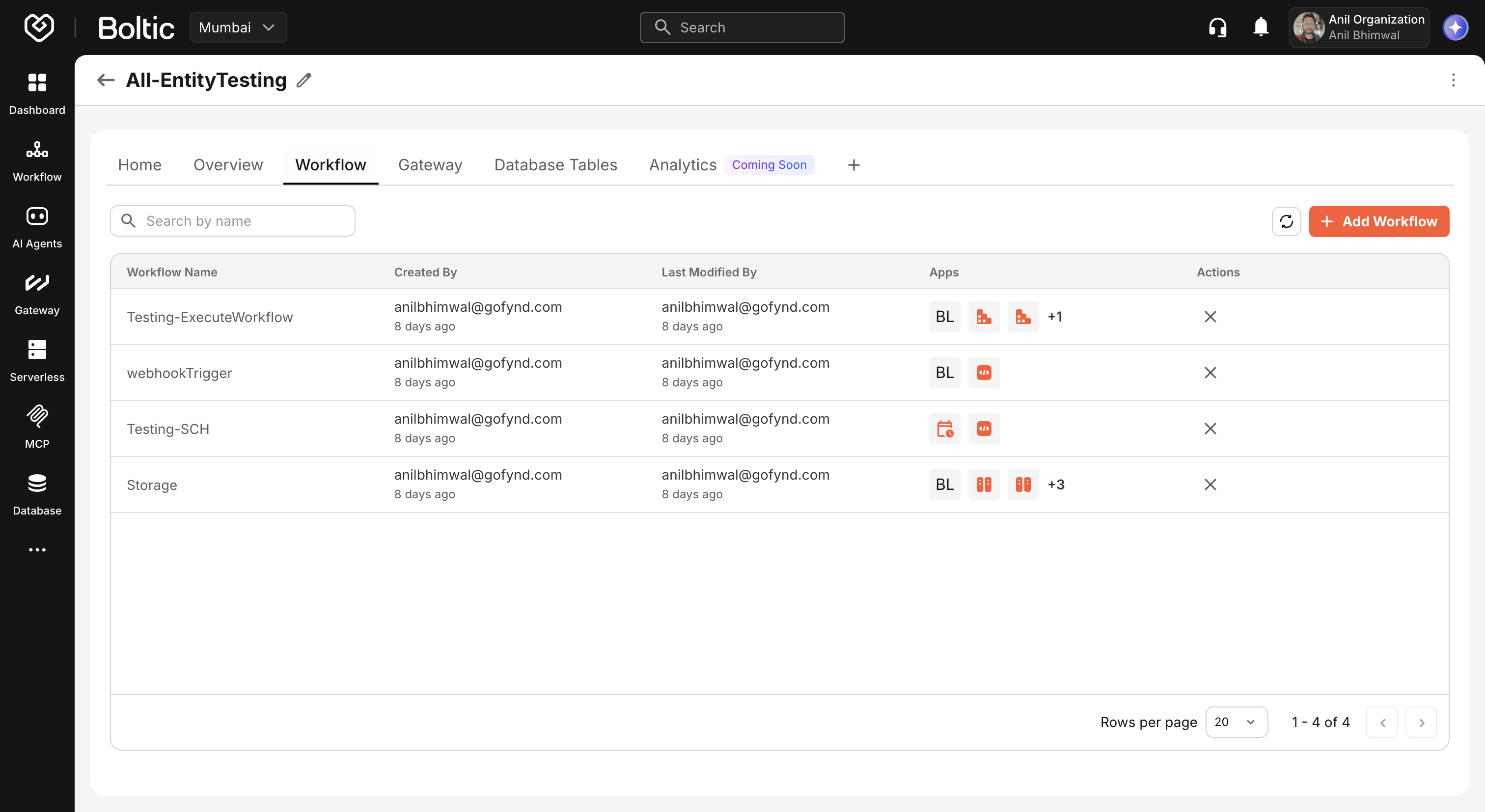
Each entity tab reuses the same table patterns as the standalone service listings, with project-specific behavior:
- Search within that entity type.
- Pagination with configurable page sizes.
- Row click opens the entity in its native editor (Workflow Builder, Gateway draft, Serverless edit, and so on).
- Remove from project action on each row (does not delete the underlying resource).
When you navigate into an entity from a project tab, the URL may include from_project=<project_id> so you can return to project context where supported.
 |
|---|
AI Agents tab
AI Agents open in the Kaily console in a new browser tab, since agent management lives in the Kaily product surface. Deployment actions from the table also open Kaily. To create or configure an agent, follow the AI Agent Setup guide.
Add entity menu
The + control in the tab bar opens a menu of entity types. Types that already have at least one linked resource show Already added and are disabled in this menu—use the entity tab itself to add more items of that type.
Available types in the menu:
- Workflows
- AI Agents
- Gateway
- Serverless
- Database Tables
- MCP
Selecting a type starts the add entity flow.
Rename and metadata
| Action | Where | Notes |
|---|---|---|
| Rename project | Header (inline edit) | Updates project name via API. |
| Edit description | Home tab | Required non-empty description. |
| Edit overview | Overview tab | Markdown readme; optional but recommended. |
Creator and last-modified metadata are stored on the project record and surfaced in API responses; listing filters can use Created by and Modified by.
Next steps
- Managing entities — Add, create, and remove resources.
- Project templates — Create from or publish templates.
- Deleting a project — Remove a project with or without its entities.