Managing Entities in a Project
Projects link to Boltic resources—they do not host the resources themselves. This guide covers adding entities at creation time, adding them afterward, creating new resources in project context, and removing associations.
Entity types recap
| Console label | API item_type | Service |
|---|---|---|
| Workflows | WORKFLOW | Vortex |
| Database Tables | TABLE | Tables / Athena |
| Gateway | GATEWAY | Fluix |
| Serverless | SERVERLESS | Conductor / Nightwing |
| MCP | MCP | Boltic MCP |
| AI Agents | AI_AGENT | Kaily (Neo / Trinity) |
Add entities during project creation
When creating a project, step Select Entities lets you link existing resources before the project exists. Each row specifies a type and a specific resource ID.
This is the fastest way to stand up a project if you already have workflows or gateways built elsewhere.
Add entities after creation
From the project details page:
-
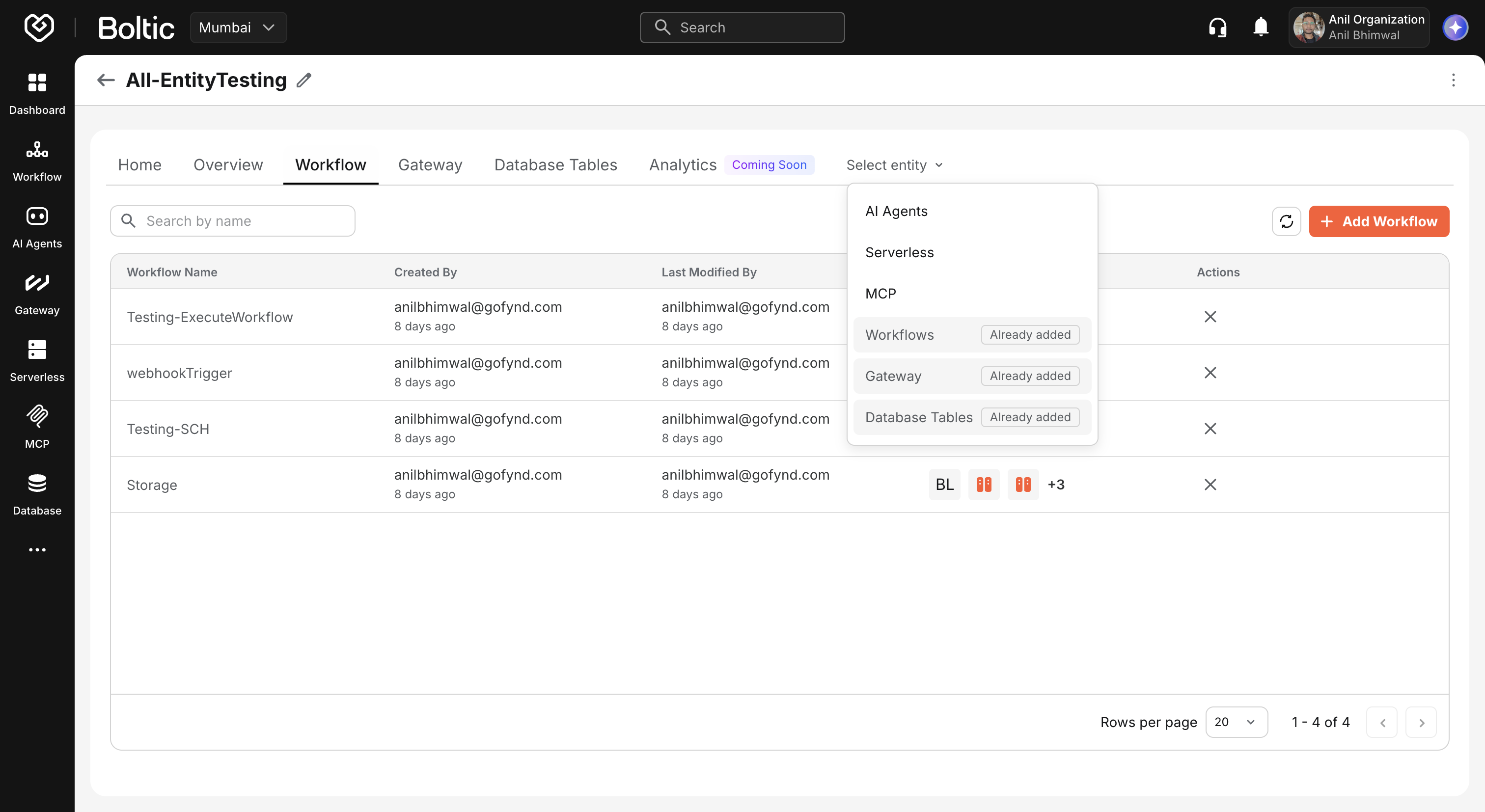
Click Add entity in the header, or use the + tab menu.
-
Choose an entity type (Workflows, Gateway, Serverless, and so on).
-
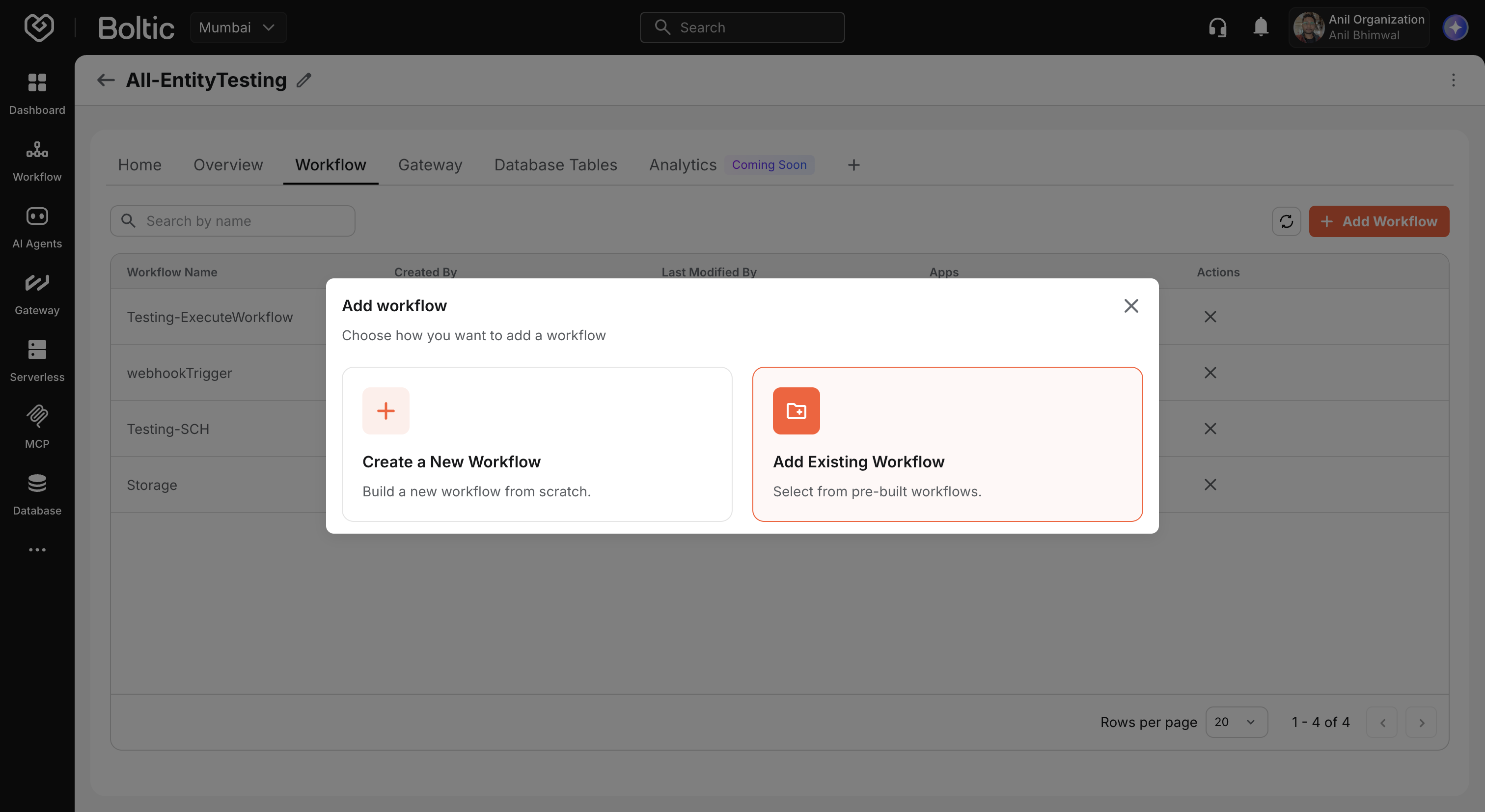
Pick how to add it.
Create a new entity
Build a brand-new resource that is automatically associated with the current project.
| Entity type | Where you are sent |
|---|---|
| Workflow | Workflow Builder listing with project_id in the query string |
| Gateway | API Gateway creation flow |
| Serverless | Serverless create page with projectId query parameter |
| Database Tables | Tables create flow |
| MCP | MCP listing / create flow |
| AI Agent | Kaily AI Agent Setup (create-ai-agent?project_id=...) in a new tab |
 |
|---|
After you finish creating the resource in its service, return to the project—the new item should appear on the corresponding entity tab after refresh.
Add an existing entity
Link a resource that already exists in your organization:
-
Choose Add existing in the choice modal.
-
Search and select one or more items from the modal list.
-
Confirm to create project-item associations.
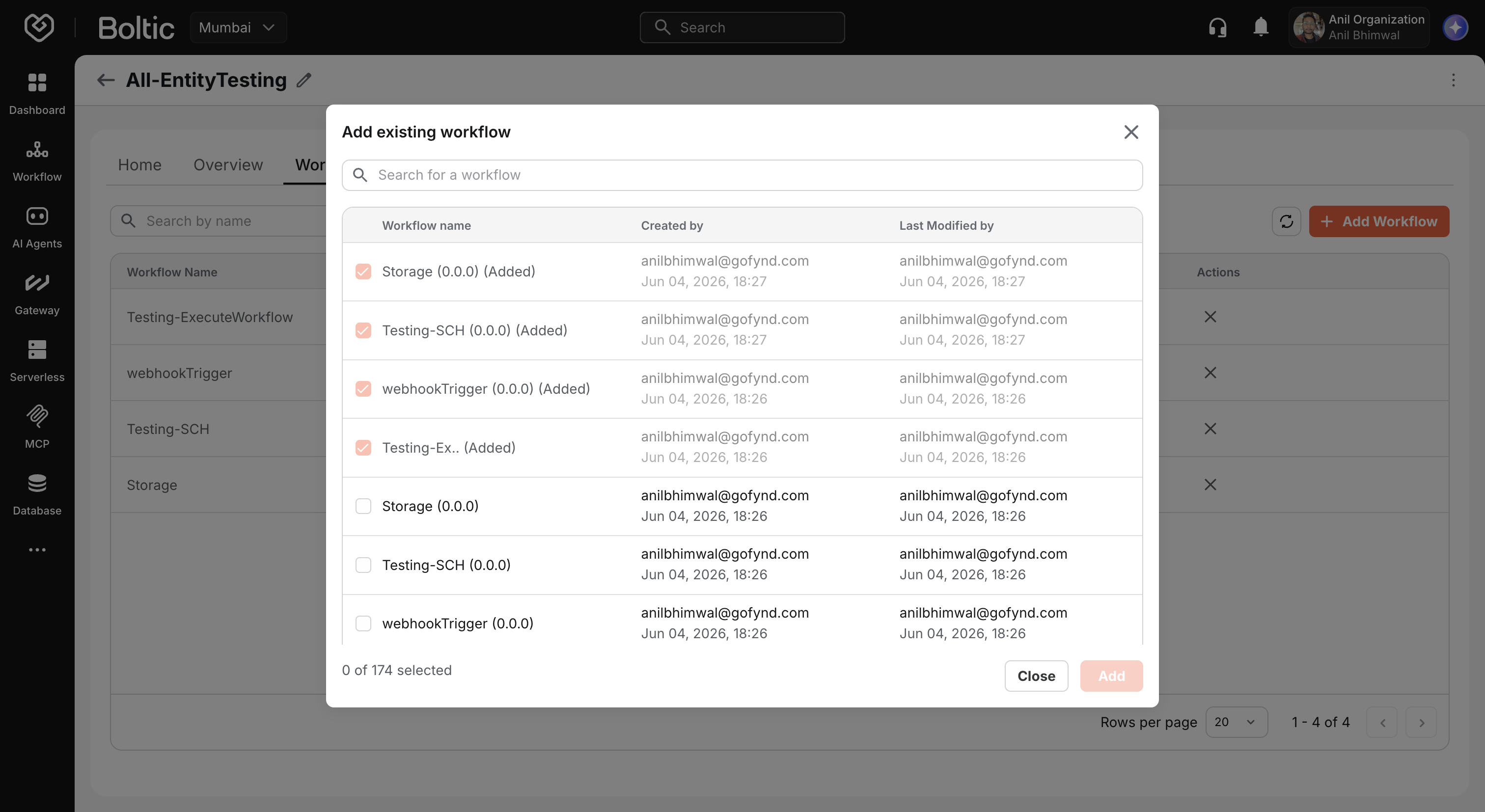
The same resource cannot be linked to the same project twice. If an item is already in the project, it will not appear as selectable again.
Work with entities on entity tabs
Once a project has at least one entity of a type, that type's tab appears.
Open an entity
Click a row to open the resource in its editor:
- Workflow — Draft or published workflow in Workflow Builder.
- Gateway — Gateway draft editor.
- Serverless — Serverless application edit view.
- Database Tables — Table schema editor.
- MCP — MCP server edit view.
- AI Agent — Kaily copilot overview (new tab).
Search and paginate
Entity tabs support name search and pagination, consistent with standalone listings. Use these controls when projects grow large.
Remove from project
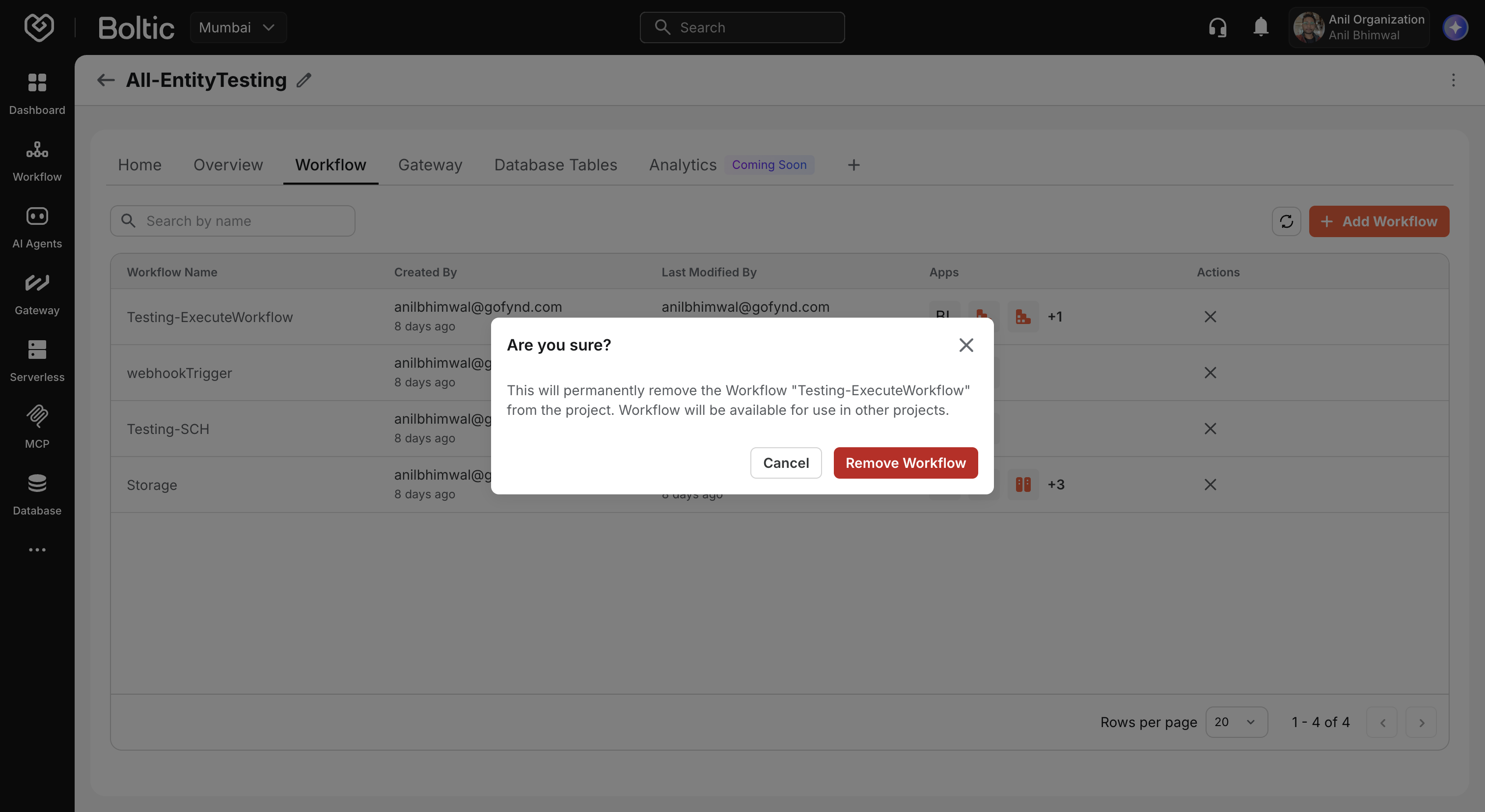
Use Remove from project on a row to unlink the entity.
Removing an entity only deletes the project association. The workflow, gateway, table, or other resource remains in your account and can be added to other projects or used standalone.
This is different from deleting a project with all entities, which can permanently delete linked resources.
 |
|---|
Confirm in the modal to complete removal.
Add more items of the same type
The Add entity menu disables a type once that type already exists in the project (labeled Already added). That restriction applies only to the header menu—it prevents picking the type again from the shortcut.
To add additional workflows, gateways, or tables of the same type:
- Go to the entity tab (for example, Workflow).
- Use the tab's own create or import flows, or add existing items through the entity-specific UI where available.
Alternatively, create the resource from its service with the project_id / projectId query parameter so it links automatically.
Project context in other services
Several Boltic surfaces honor project context when you arrive from a project:
- Serverless create URLs include
?projectId=<uuid>. - Workflow and gateway navigation may append
?from_project=<uuid>for return navigation. - AI agent flows use
project_idwhen opening Kaily. See AI Agent Setup to create and configure agents.
This keeps new work scoped to the correct project without manual linking afterward.
API behavior (for integrators)
If you automate project management, the Fluix Projects API exposes:
POST /panel/v1.0/projects/:projectId/items— Add one or more items (array body withitem_idanditem_type).DELETE /panel/v1.0/projects/items/:itemId— Remove a project item association.PATCH /panel/v1.0/projects/items/:itemId— Move an item to a different project (project_idin body).GET /panel/v1.0/projects/:projectId/items— List items with optionalitem_typefilter; responses includedetailsfetched from each downstream service.
Unique constraint: the combination of (project_id, item_type, item_id) must be unique within a project.
Next steps
- Project details and tabs — Tab reference and Overview readme.
- Project templates — Bootstrap or publish repeatable project setups.
- Deleting a project — Delete project only vs. delete all entities.