Deleting a Project
You can delete a project from the Projects listing or from the project details header. Deletion always requires confirmation by typing the exact project name.
Deleting a project is irreversible for the project record itself (projects are soft-deleted on the server, but they disappear from the console). What happens to linked entities depends on the option you choose.
Open the delete dialog
-
Navigate to the project you want to delete, or locate it on the Projects listing.
-
Click Delete (trash action on a card/row, or delete in the details header).
-
Review the two deletion modes in the modal.
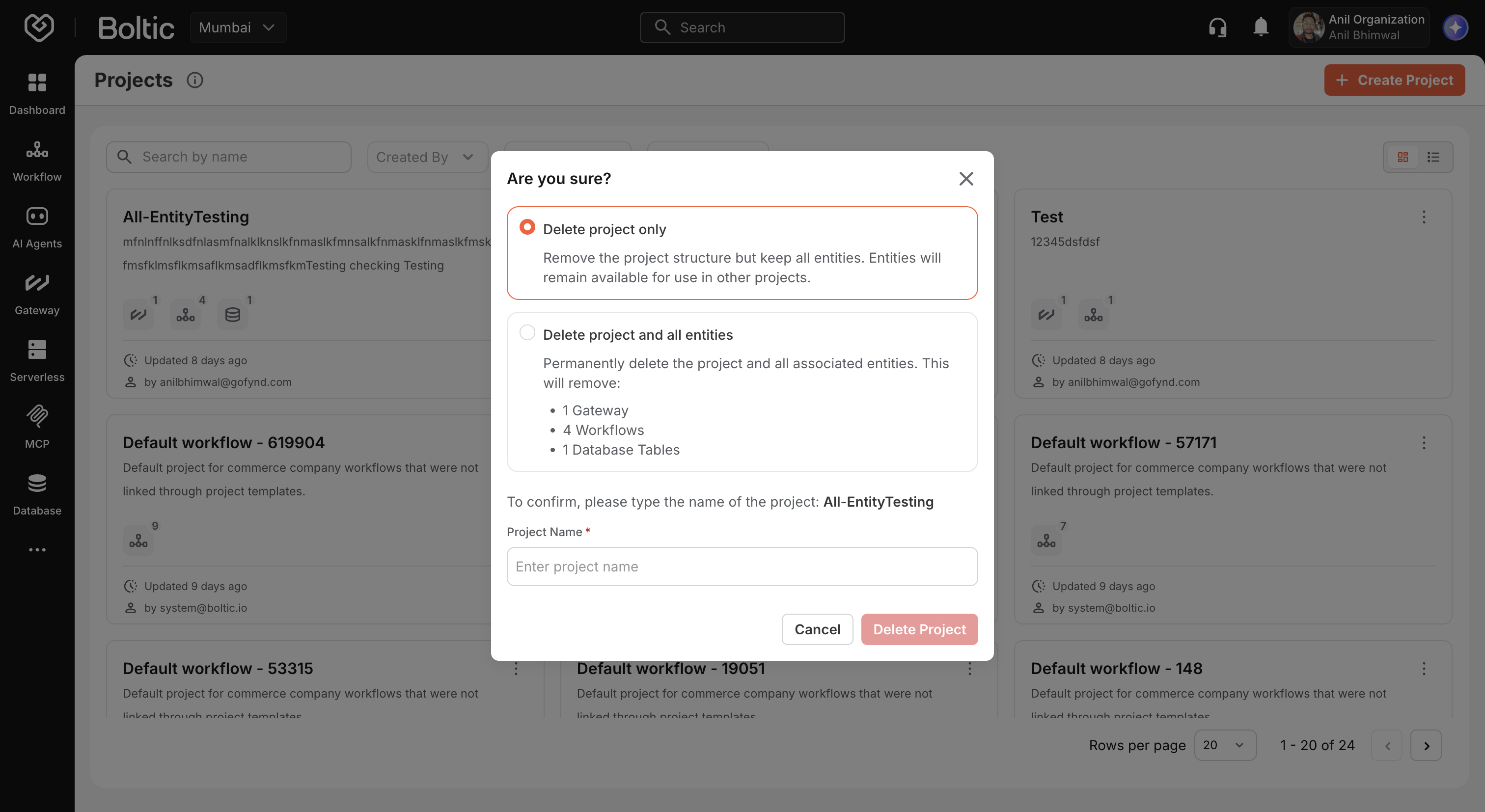
Deletion options
| Option | API parameter | What happens |
|---|---|---|
| Delete project only | cascade_delete: false | The project container is removed. All linked entities remain in your account and can be reused in other projects or standalone. |
| Delete project and all entities | cascade_delete: true | The project is removed and every linked workflow, gateway, table, serverless app, MCP server, and AI agent in the project is permanently deleted. |
Delete project only
Choose this when you want to dissolve the organizational grouping but keep the underlying automations, APIs, and data.
- Entity counts are shown for awareness, but nothing is deleted except the project association.
- Resources remain at their original locations (Workflow Builder, Gateway, Tables, and so on).
Delete project and all entities
Choose this only when you intend to tear down the entire initiative.
The modal lists how many items of each type will be removed, for example:
- 3 Workflows
- 2 Gateway
- 1 Database Tables
A warning banner explains that this action permanently deletes all listed entity types in the project.
Delete project and all entities triggers asynchronous deletion of each resource by type (via Kafka events on the backend). This cannot be undone. Double-check entity counts before confirming.
Confirm deletion
- Select the radio option you want.
- Type the exact project name in the confirmation field (case-sensitive match).
- Click Delete Project.
The button stays disabled until the name matches. While deletion is in progress, the modal shows a loading state and cannot be dismissed.
On success:
- From details, you are redirected to the Projects listing.
- From the listing, the project disappears after the list refreshes.
Remove a single entity without deleting the project
To unlink one workflow or gateway without deleting the whole project, use Remove from project on the entity tab. See Managing entities.
That action removes only the association—the entity survives unless you delete it in its own service.
Child projects (API)
The Projects API supports nested projects via parent_project_id. Deleting a parent project recursively deletes child projects on the server before removing the parent. Nested project hierarchy is primarily an API capability; the console today focuses on flat project organization.
Troubleshooting
| Issue | What to do |
|---|---|
| Delete button disabled | Ensure the confirmation text exactly matches the project name. |
| Entities still visible after "project only" delete | Expected—entities are intentionally preserved. Remove them individually if needed. |
| Deletion hangs | Entity cascade deletes run asynchronously. If resources persist unexpectedly, check the individual service listing or contact support. |
Next steps
- Managing entities — Remove individual items from a project.
- Getting started — Return to the Projects listing.