Inspector
The MCP Inspector is a visual, interactive tool for testing MCP servers. It enables you to inspect inputs and outputs, and iterate quickly by testing actions in real time without waiting for an LLM or AI agent.
With the Inspector, you can:
- Discover all available actions in your MCP server.
- Execute actions with custom inputs.
- Inspect responses and debug issues.
- Iterate quickly on action development.
Use this tool to validate your MCP server configuration before connecting to production AI applications.
Using the Inspector
- In the MCP panel, navigate to your MCP server.
- In the left panel, click Inspector tab to open the inspector interface.
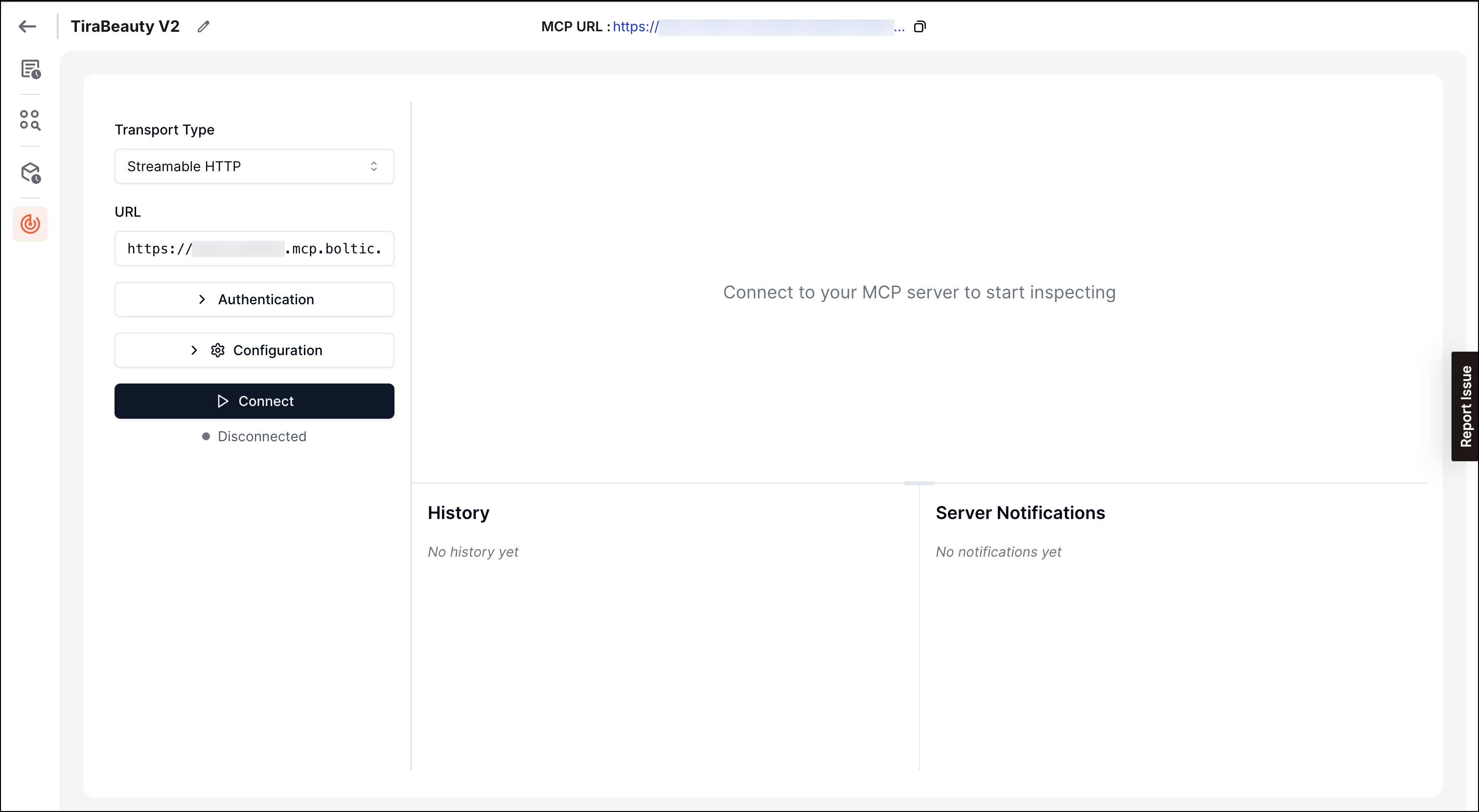
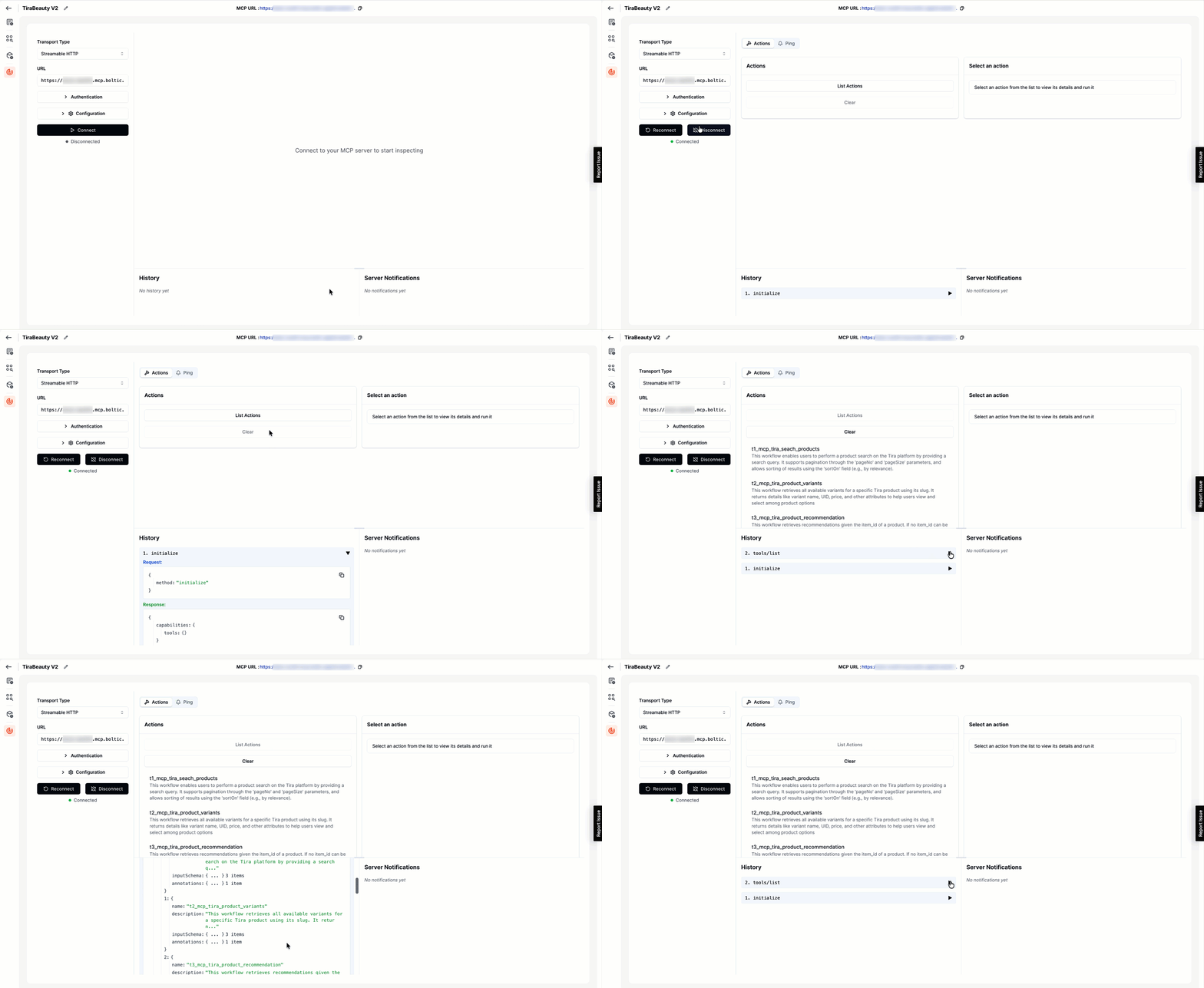
- Click Connect to establish a new connection to your MCP server. The Inspector will initialize the connection and negotiate protocol capabilities. A confirmation message will appear once the connection is active.
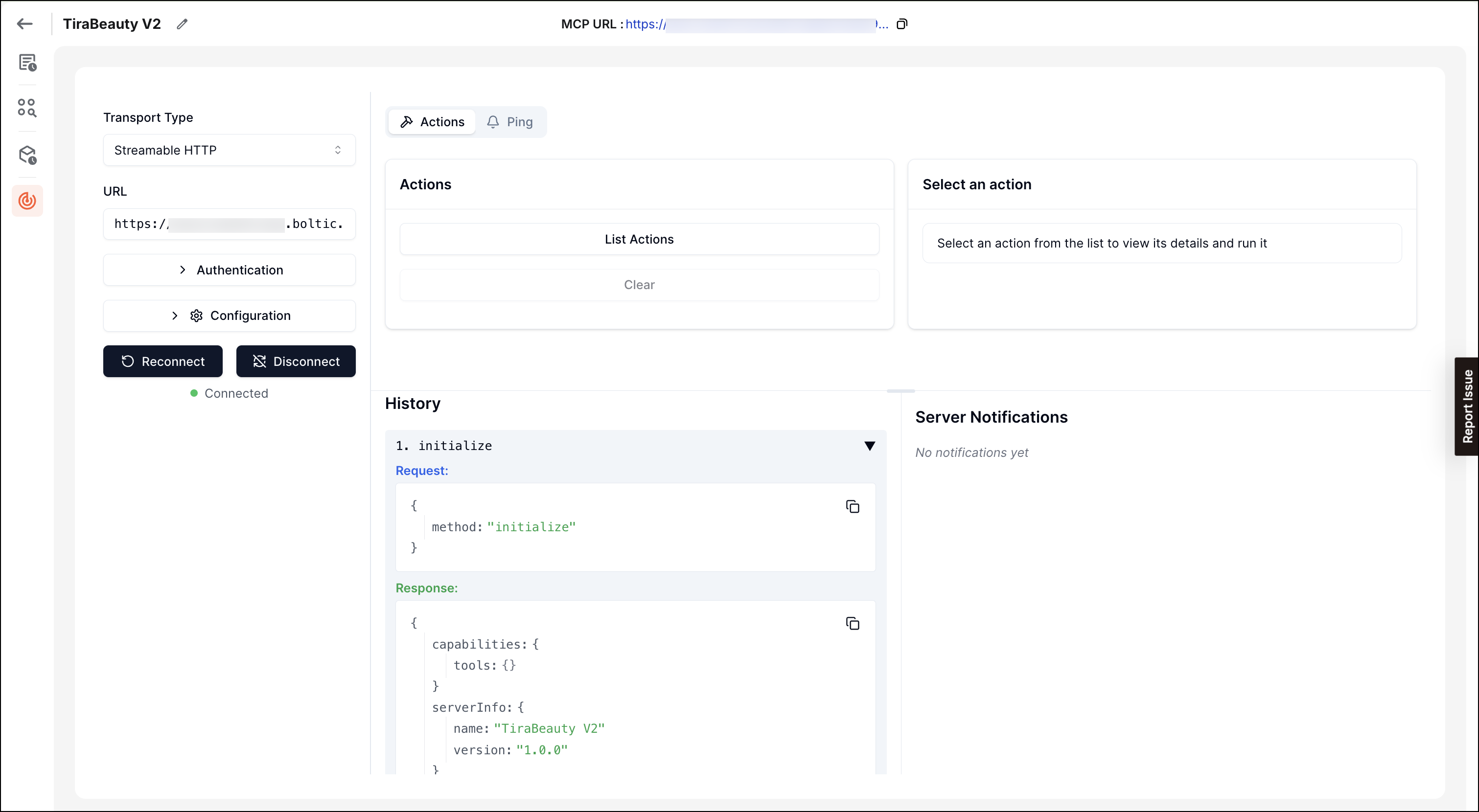
- Click List Actions to retrieve the list of actions available in your MCP server. The Inspector sends a
tools/listrequest to discover all available actions. Once loaded, you'll see a list of all actions, each with its names and description.
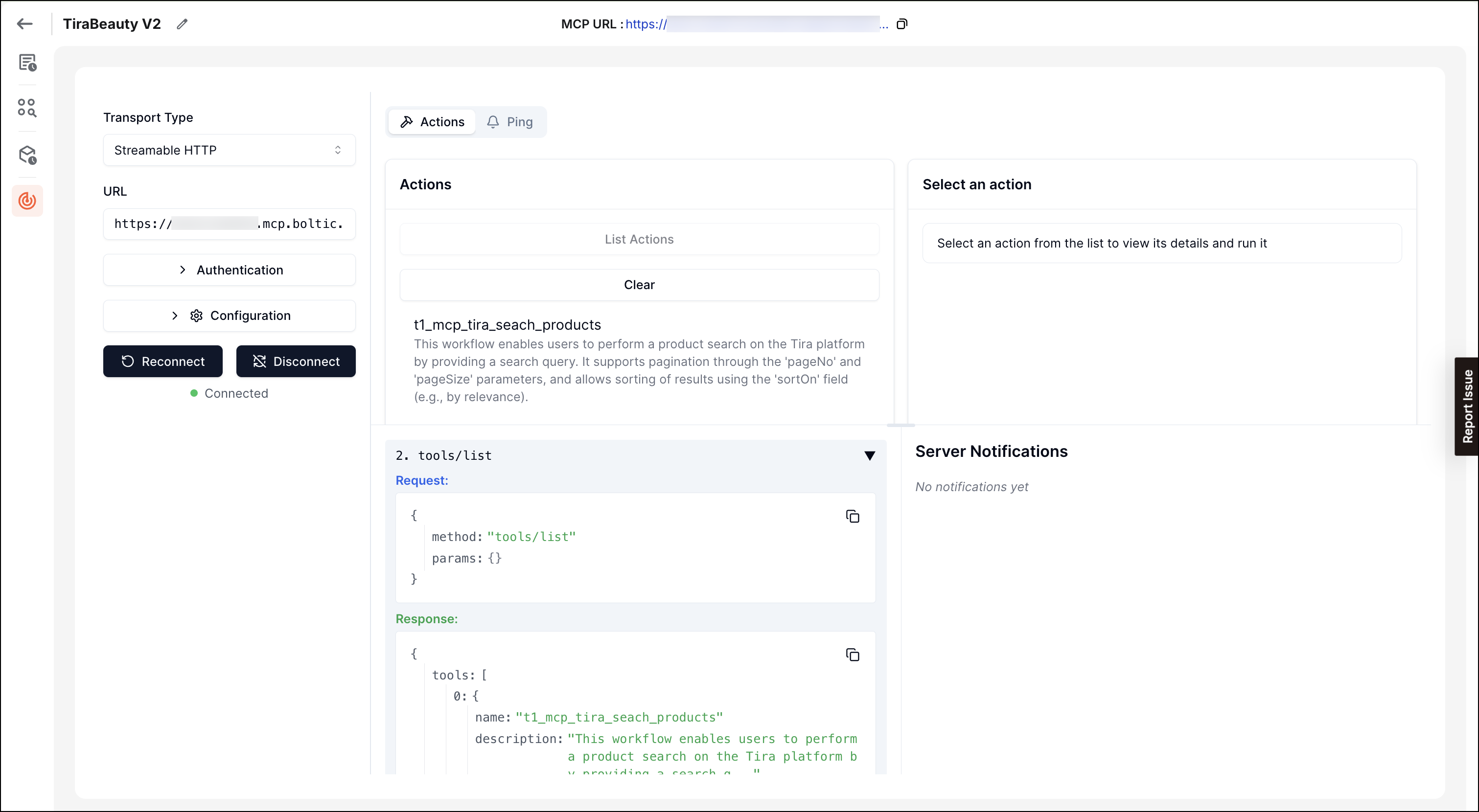
- Click on an action from the list to view its details.
The Inspector displays:- Action name: The unique identifier for the action
- Description: A human-readable description of what the action does
- Input schema: The parameters the action expects, including types, descriptions, and required fields
- Example usage: Sample parameter values (if available)
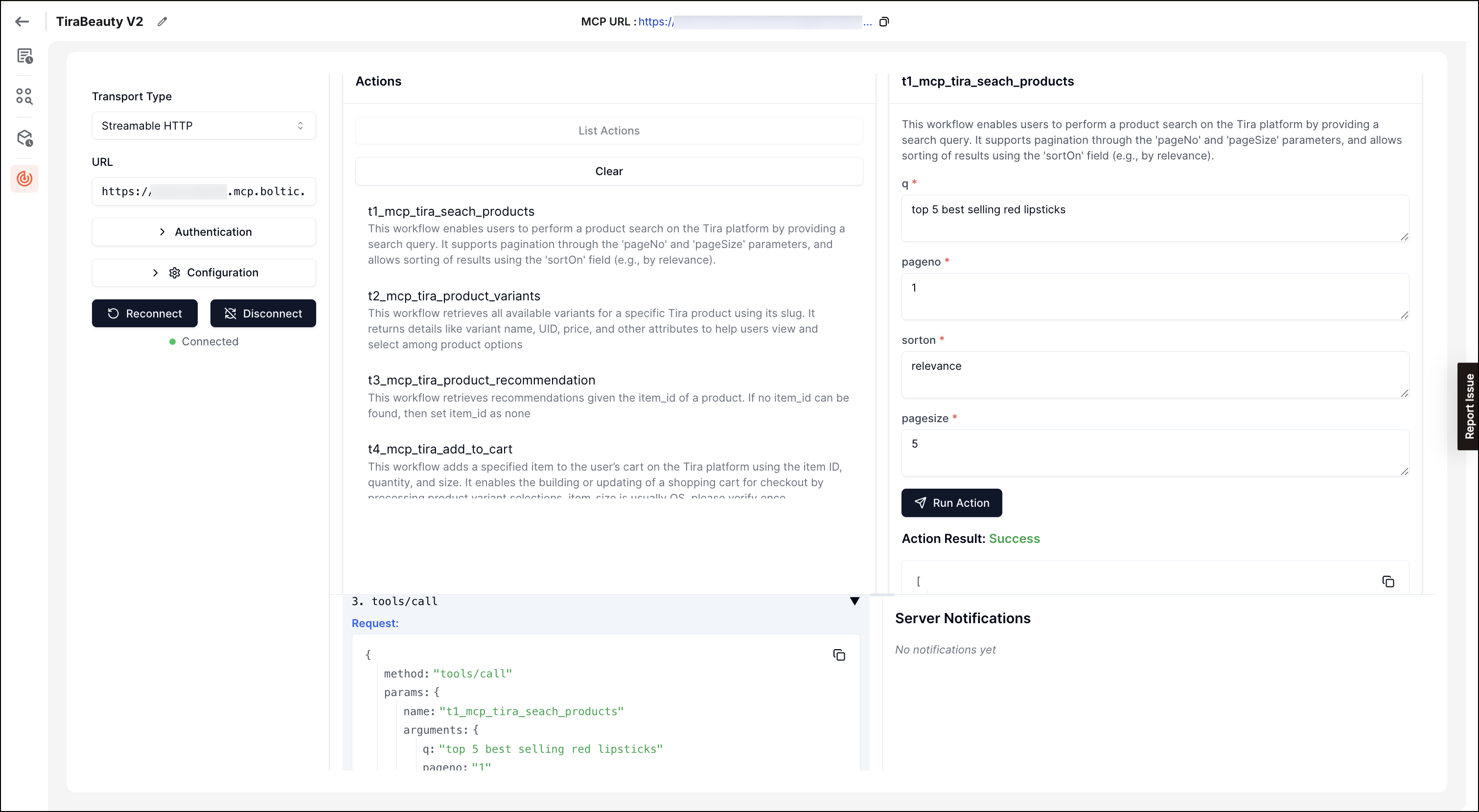
- Fill in the required parameters for the action.
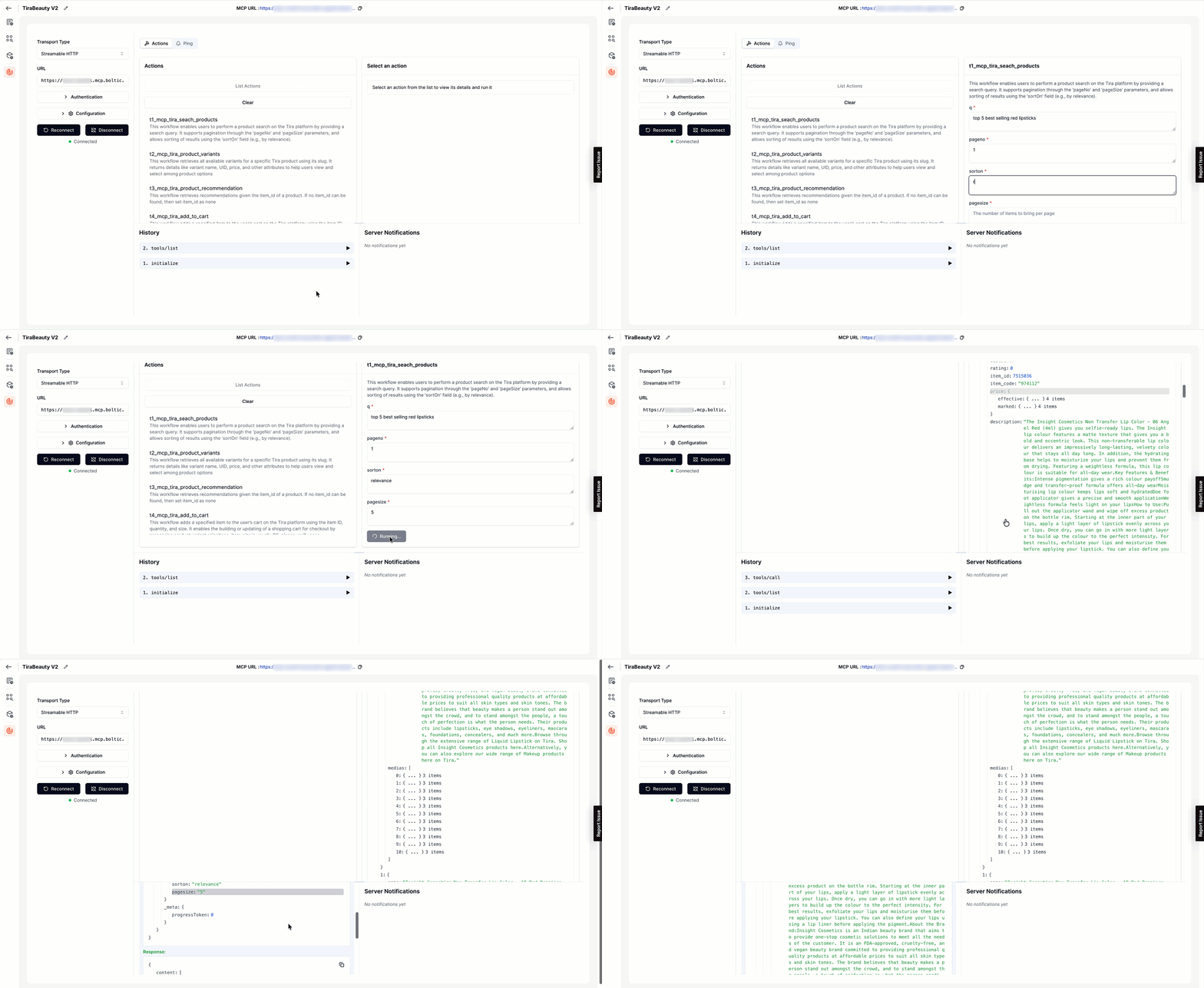
- Optionally provide values for optional parameters.
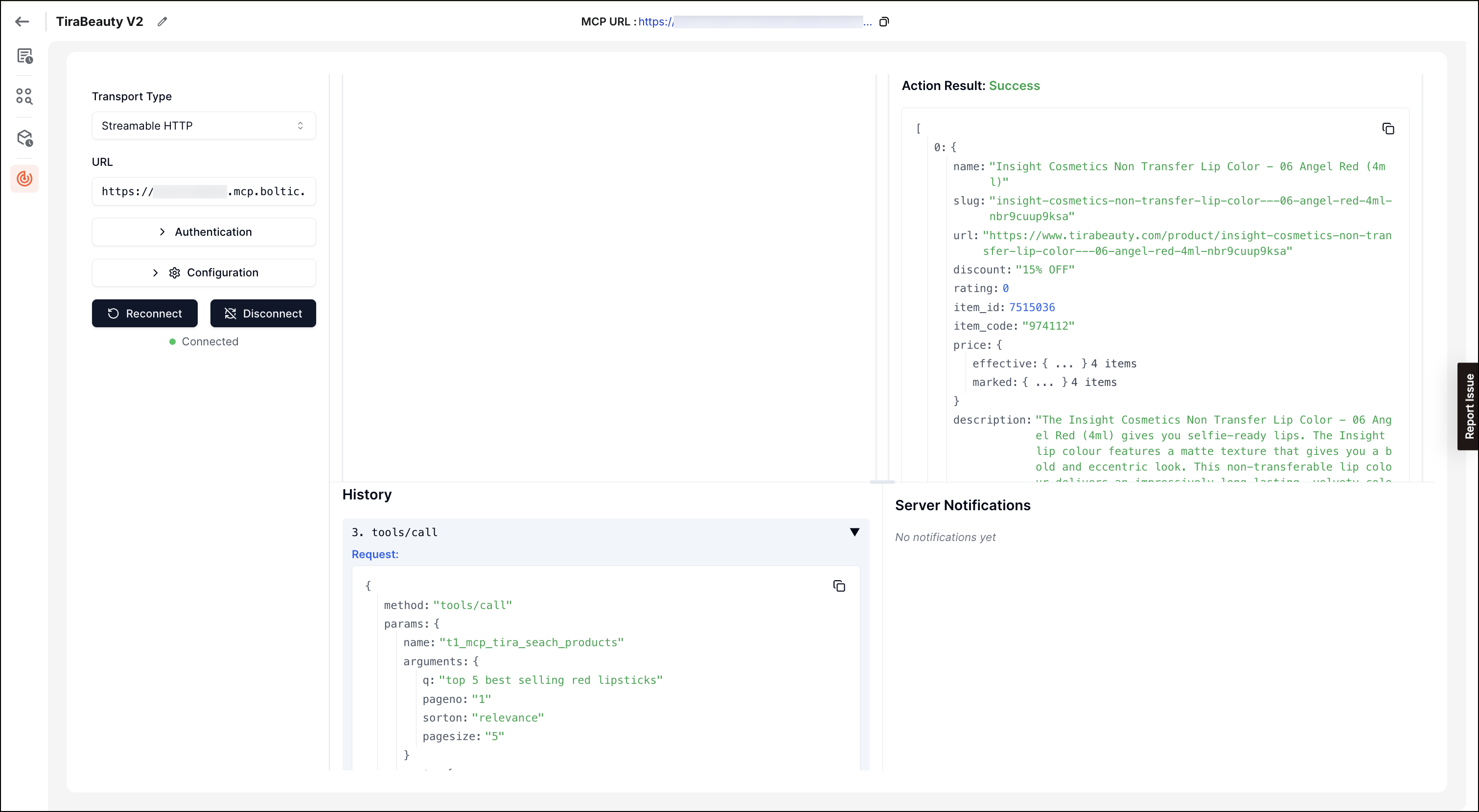
- Click Run Action.
View the response in the results panel, which shows:- Response status: Success or error indication
- Response body: The structured output from the action
- Execution time: How long the action took to complete
- Error details: If the action failed, detailed error information
tip
After you successfully execute actions and verify the results, your MCP server is ready for production use.