Environments & Deployment
Fynd Boltic Gateway provides a robust dual-environment setup to support safe, iterative development and controlled production rollouts. This separation ensures that developers can test changes quickly without impacting live traffic, while production deployments remain stable and deliberate.
Draft Environment
-
Auto-Deploy on Save: Any updates to routes, integrations, or gateway configurations are instantly deployed upon saving.
-
Rapid Feedback Loop: Ideal for iterative testing and development, changes reflect almost immediately—typically within a few seconds.
-
Draft Domain: Each gateway is assigned a dedicated draft domain (e.g.,
{your-gateway-id}.gateway.boltic.app), isolated from production traffic. -
No Approval Required: Useful for experimenting with new workflows, headers, rewrites, or middleware logic without needing a manual trigger.
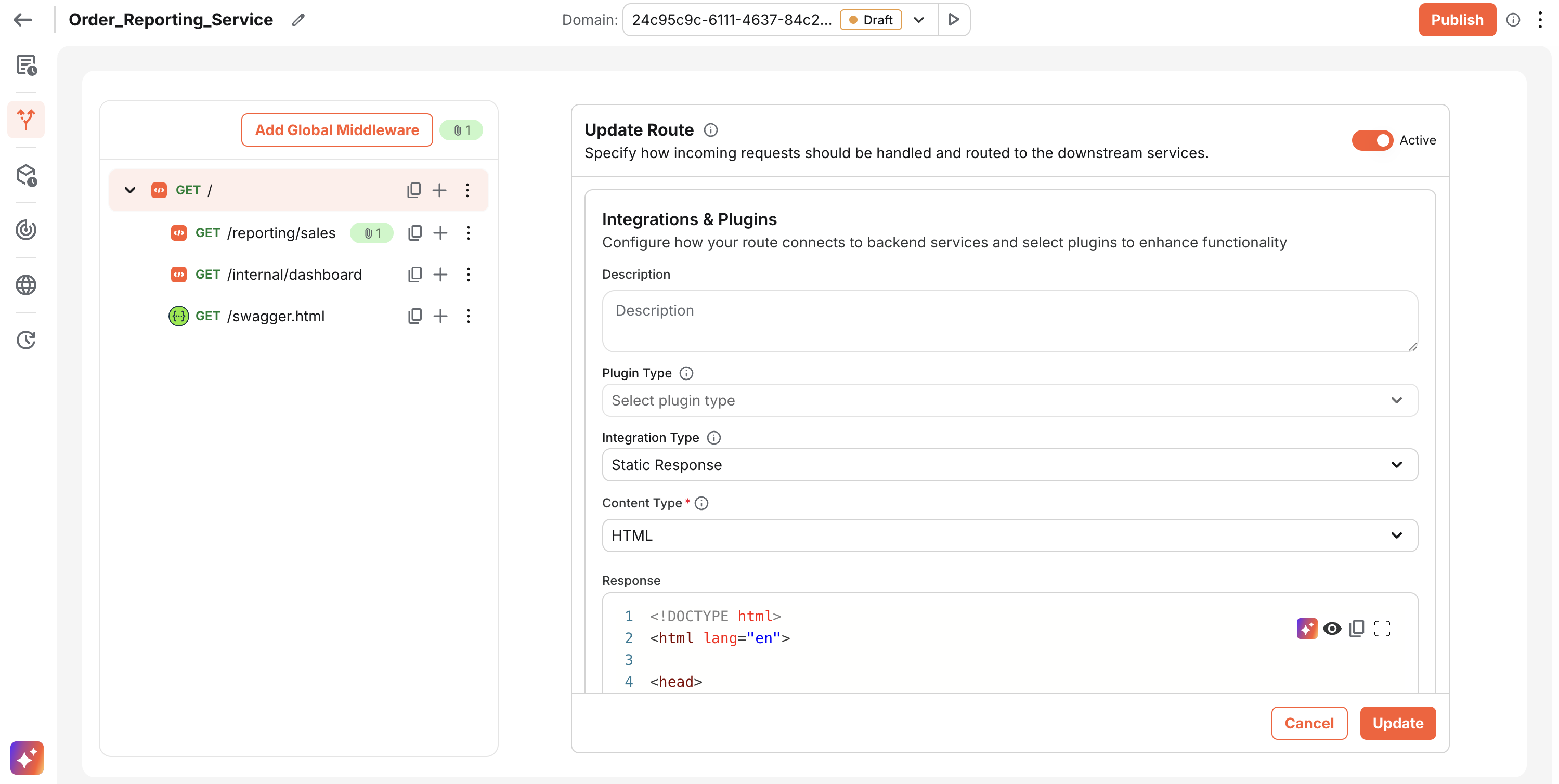
Changes to the draft environment are automatically deployed upon saving, providing a rapid feedback loop for developers.
Production Environment
-
Manual Publish Required: Changes remain on the draft domain until you explicitly publish to a production domain via the UI or API—ensuring high confidence and control.
-
Default Draft, Optional Publish: Every new gateway starts with a draft domain for testing. When ready, publish to a dedicated production domain (e.g.,
{your-gateway-slug}.gateway.boltic.app). -
Publish Steps (UI):
- Click Publish
- Select the domain you want to publish
- Click Publish Selected Domains
-
Custom Domains: You can publish to your own verified domains (up to 5 at once). See Custom Domains for setup and attach/publish steps.
-
Stable & Controlled: Guarantees that only validated configurations go live, minimizing the risk of regressions or errors in critical traffic paths.
-
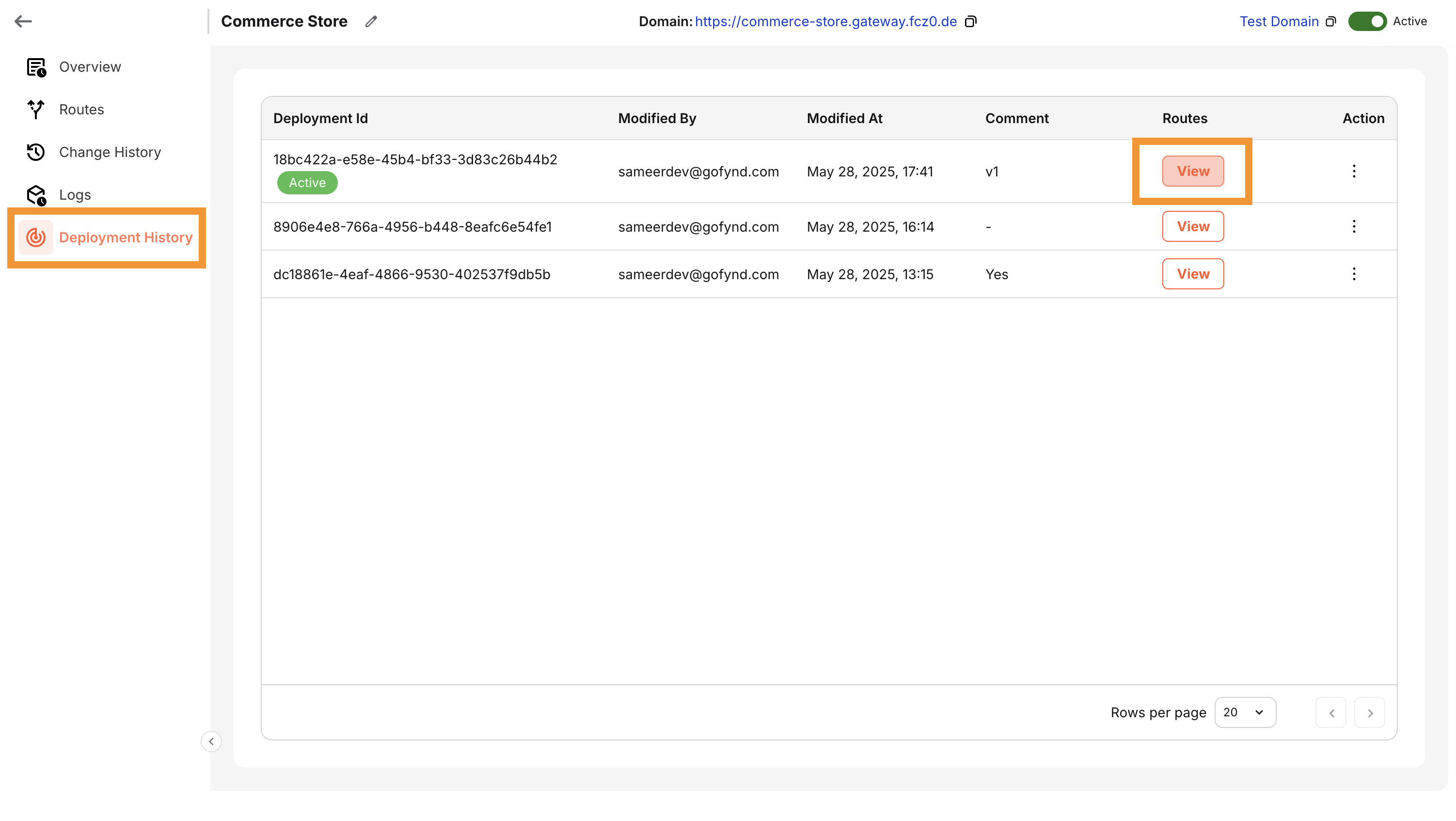
Rollback Support: Roll back instantly to any previously deployed production version in case of issues.
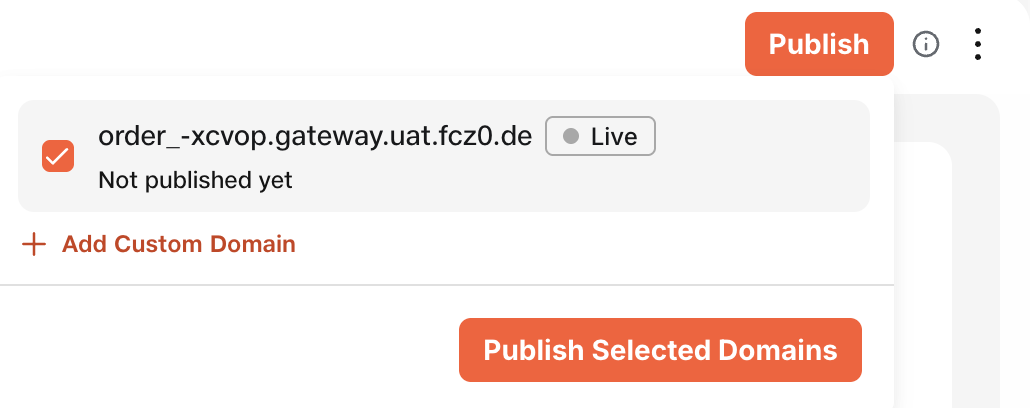
Changes in the production environment require manual deployment, ensuring a controlled and deliberate approach to traffic management.
Deployment Behavior
-
Propagation Time: Changes in either environment typically reflect within 5–10 seconds post-deployment.
-
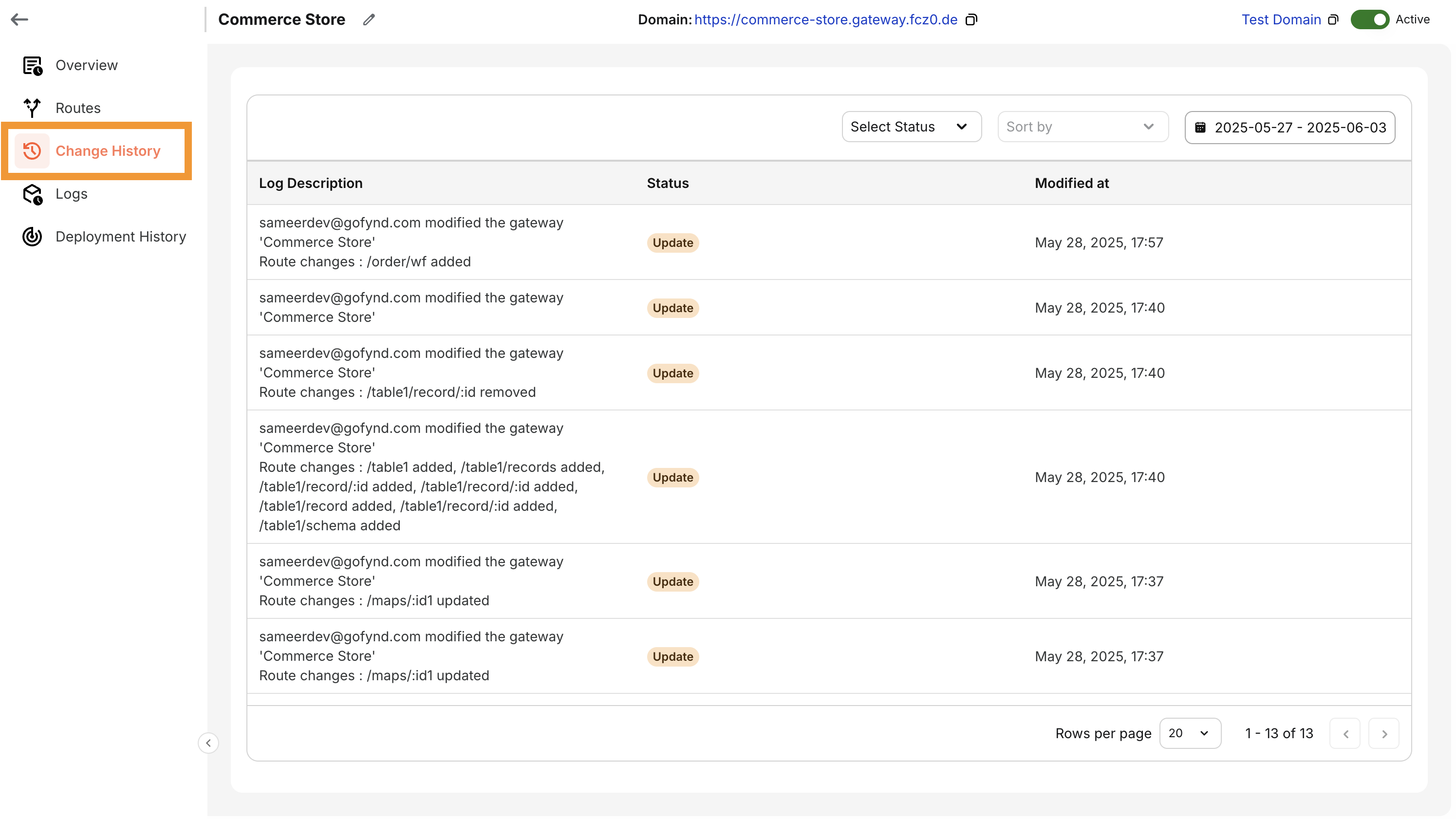
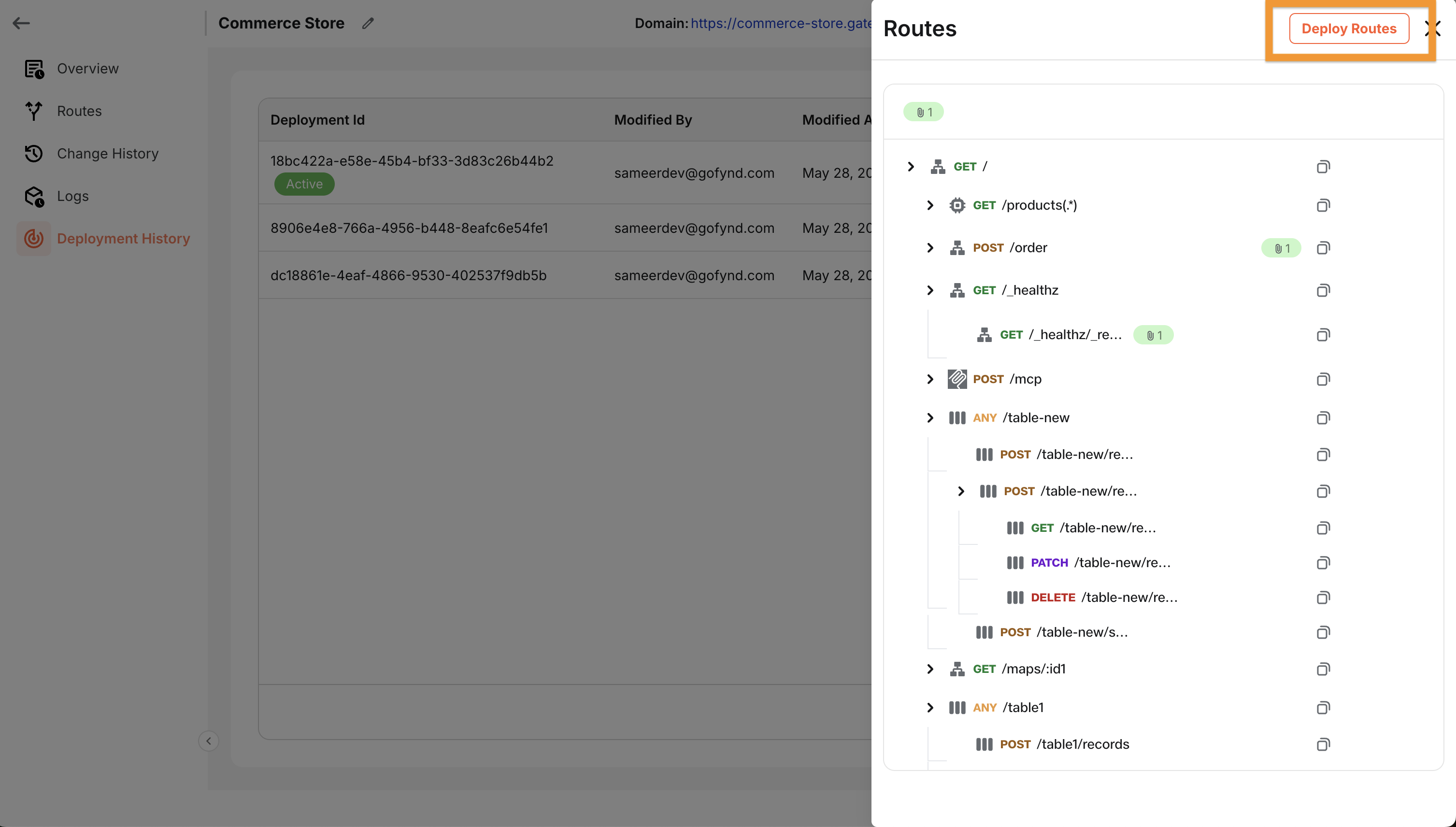
Deployment History & Audit Trail:
-
View all prior changes, timestamps, and the user who performed the action.
-
Roll back to earlier configurations with a single click—helpful in case of breaking changes or unexpected behavior.
-
Best Practices
- Use the draft environment to validate changes before every production rollout.
- Keep an eye on the deployment history for audit and debugging.
- Leverage rollback when a deployment causes unexpected behavior in production.