Custom Domains
Fynd Boltic Gateway lets you publish a gateway on one or many of your own domains, in addition to the default draft/production domains. Use custom domains to deliver brand-aligned URLs, reduce vendor exposure, and control DNS at your edge.
Key Capabilities
- Bring-your-own-domain (multiple): Map any number of valid domains or subdomains you control (publish up to 5 custom domains at once).
- DNS verification: Validate ownership with CNAME + TXT records.
- Separate draft vs. published traffic: Keep draft changes isolated until you publish to specific domains.
- One-click publish: After verification, publish from the UI in a few seconds to any selected domain(s).
- Attach/Unlink anytime: Attach multiple verified domains to a gateway and unlink when no longer needed.
Create & Verify a Custom Domain
-
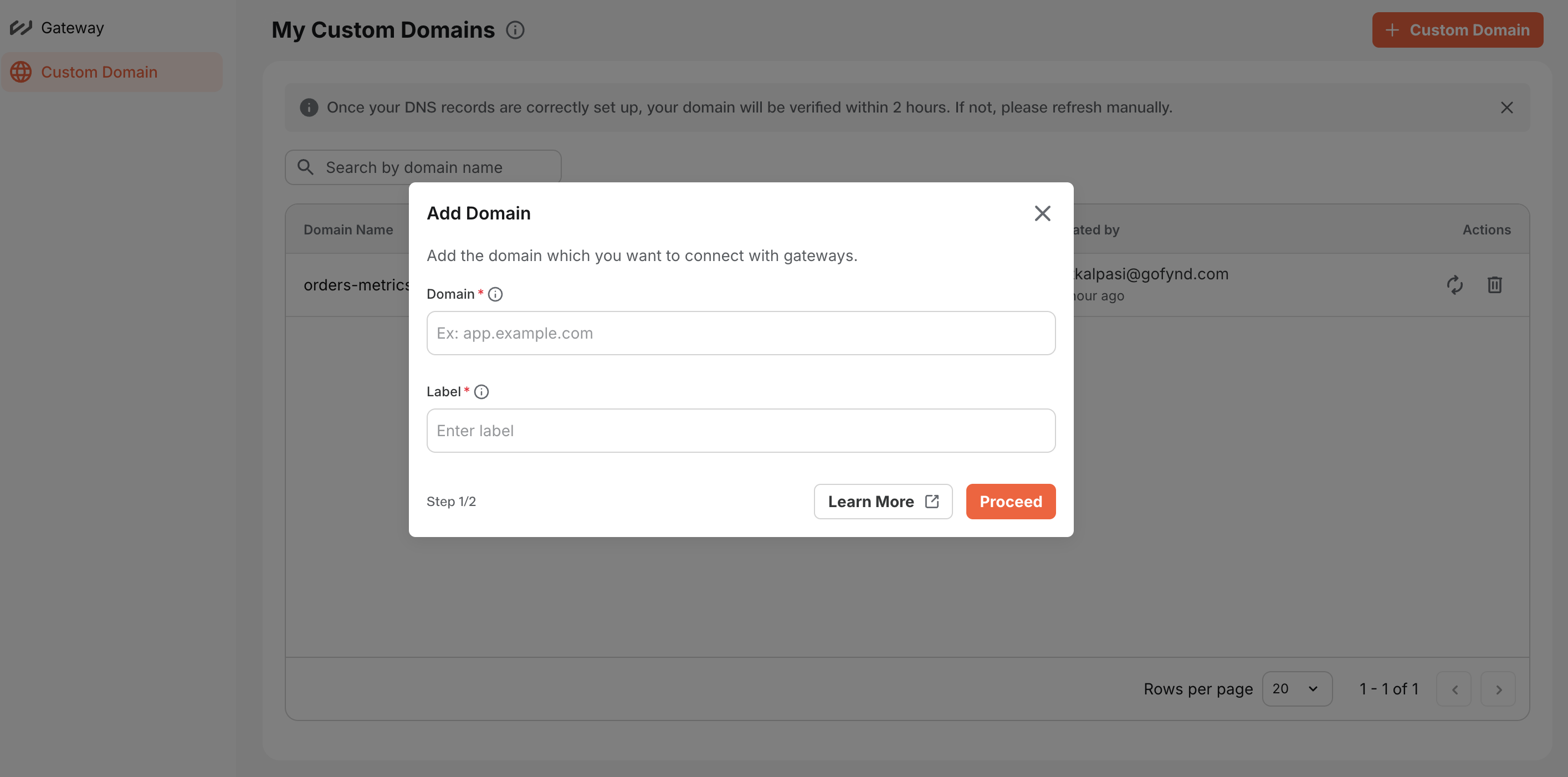
Open Custom Domain page → click Create Custom Domain.
-
Enter Domain and Label, then click Proceed.
-
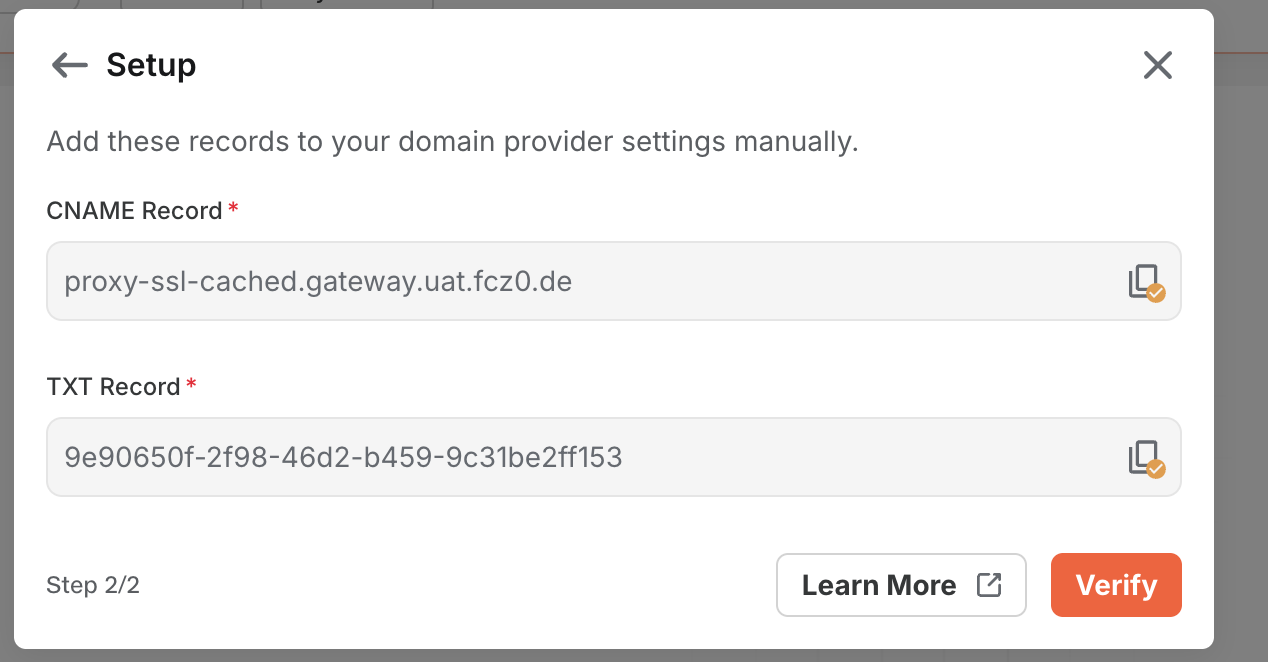
Copy the generated CNAME and TXT records shown on the next screen.
-
In your DNS provider, add both records.
-
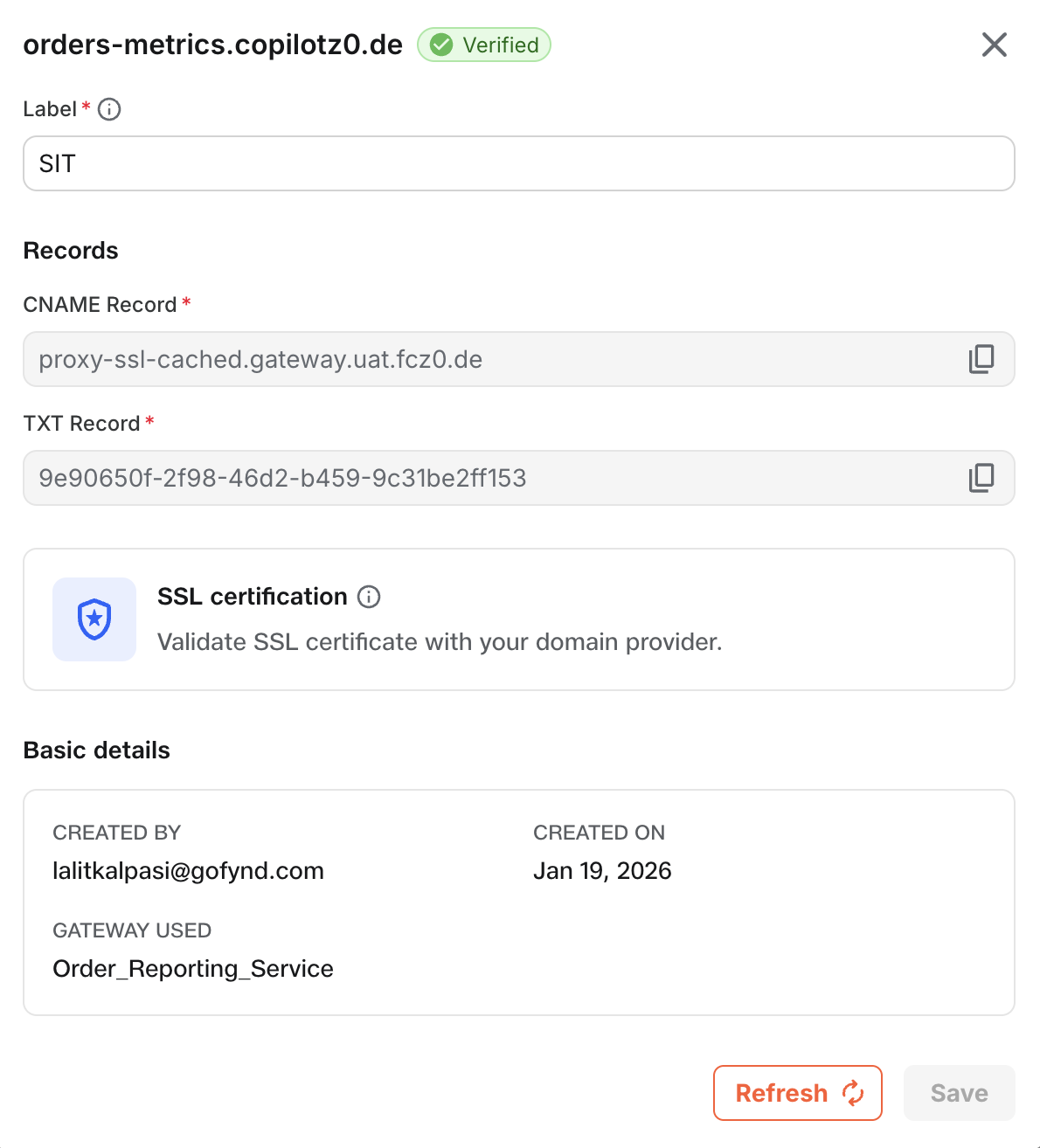
Back in Fynd Boltic, click Refresh to check the latest status.
-
Verification can take up to 2 hours depending on DNS propagation. Once status shows Verified, the domain is ready to attach.
Add both the CNAME and TXT records exactly as shown. Missing either record can delay verification.
Attach & Publish on a Custom Domain
-
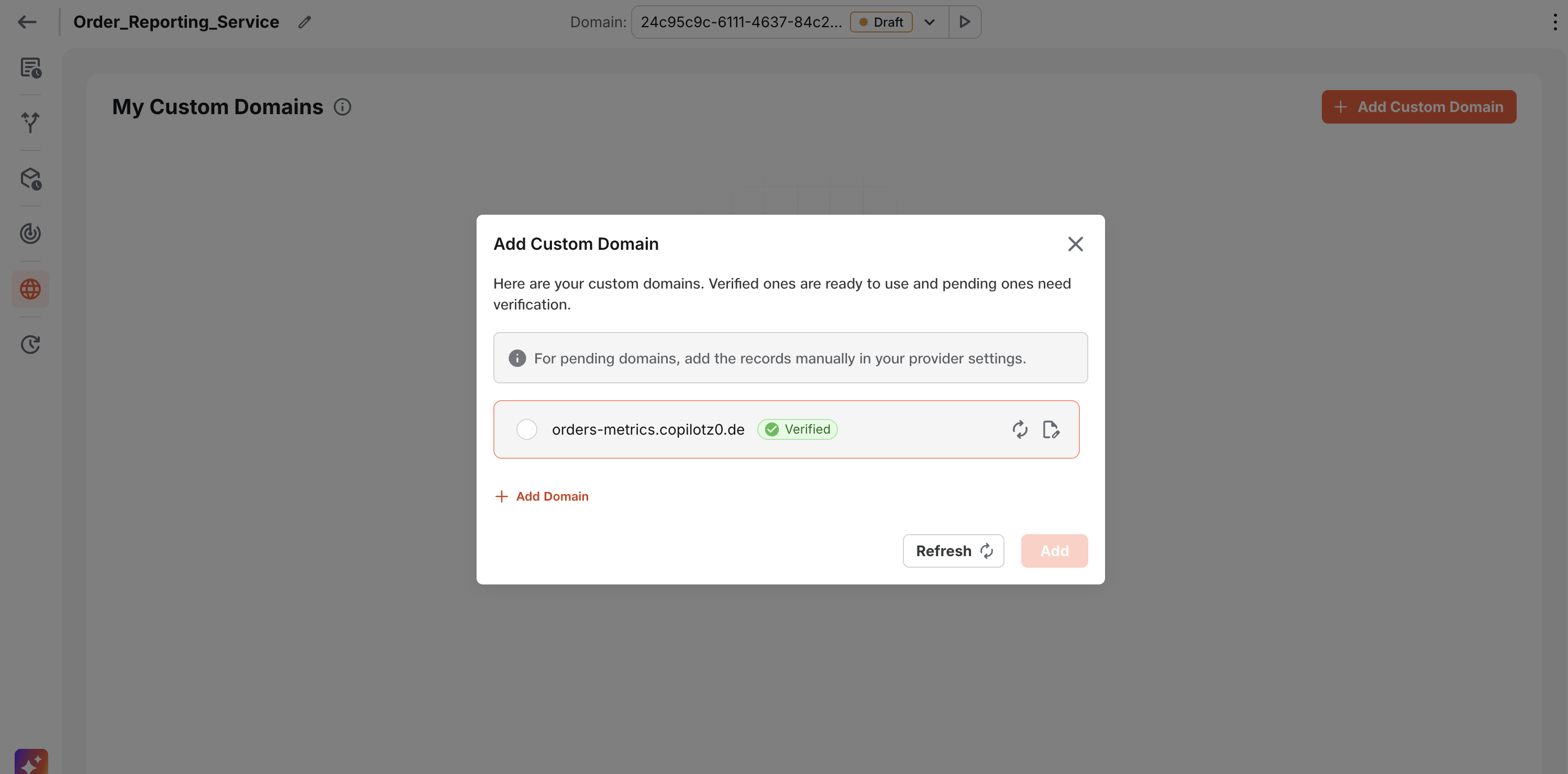
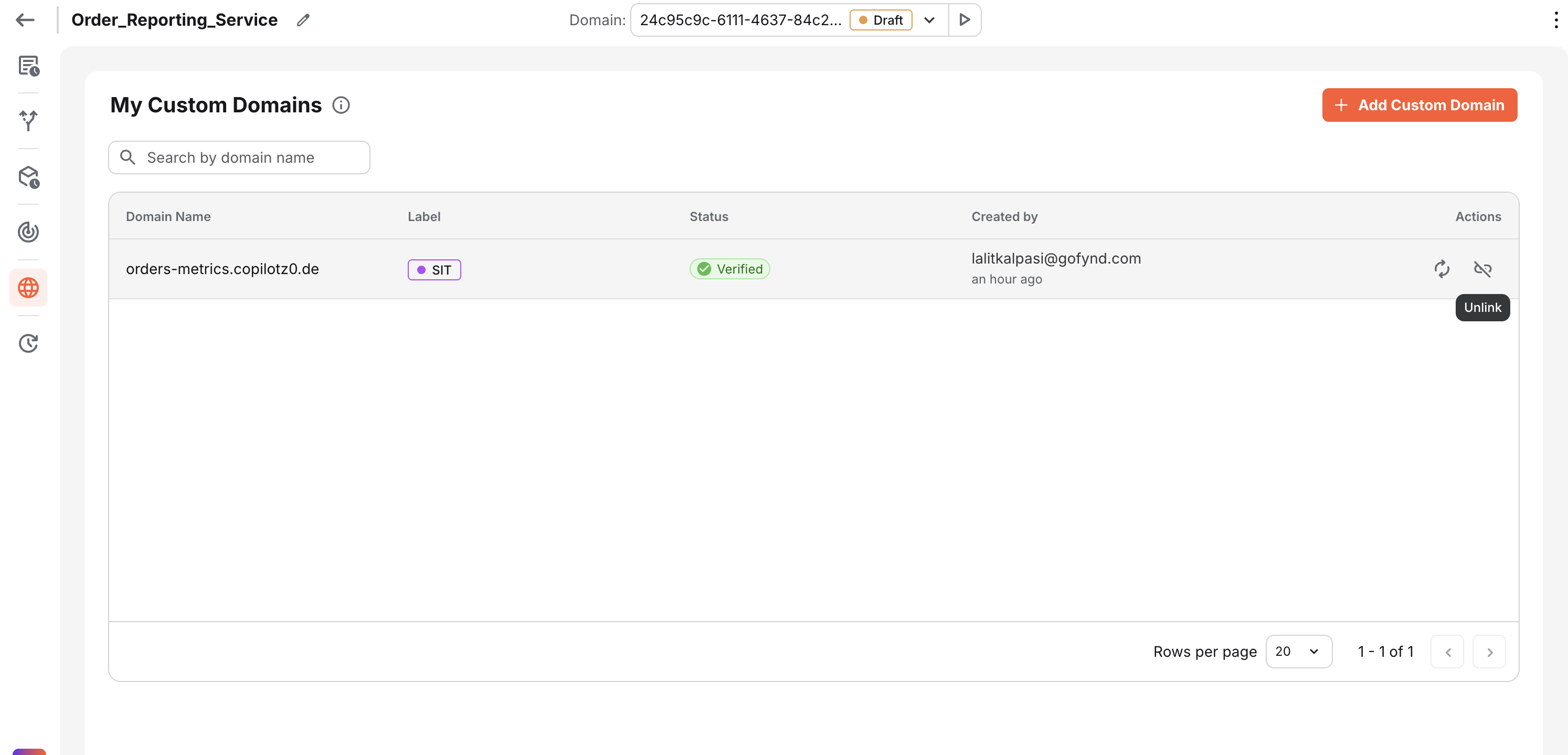
Inside your gateway go to the Custom Domain tab → click Add Custom Domain and select your verified domain to attach it to the gateway. Note: Only verified domains can be linked.
-
To publish on this domain:
- Go to the Routes tab
- Click Publish
- Select the custom domain
- Click Publish Selected Domains
-
Your gateway is now live on the custom domain. If you later need to unpublish, click Unlink for that domain.
Best Practices
- Keep the default draft domain for safe testing; publish to your custom domain only after validation.
- Allow DNS up to 2 hours to propagate; some providers are faster, others slower.
- Use the publish action deliberately—production traffic will start flowing to the selected domain after publish completes.
- If verification fails, re-check that both CNAME and TXT records match the exact names/values provided.