Boltic Account Settings
The Settings tab in Boltic is your primary place for account-level access management. From here, you can manage users, organize teams, and create long-lived tokens for automation.
Open the Settings tab
- Sign in to your Boltic account.
- Click your profile avatar in the top-right corner.
- Select Settings from the profile menu.
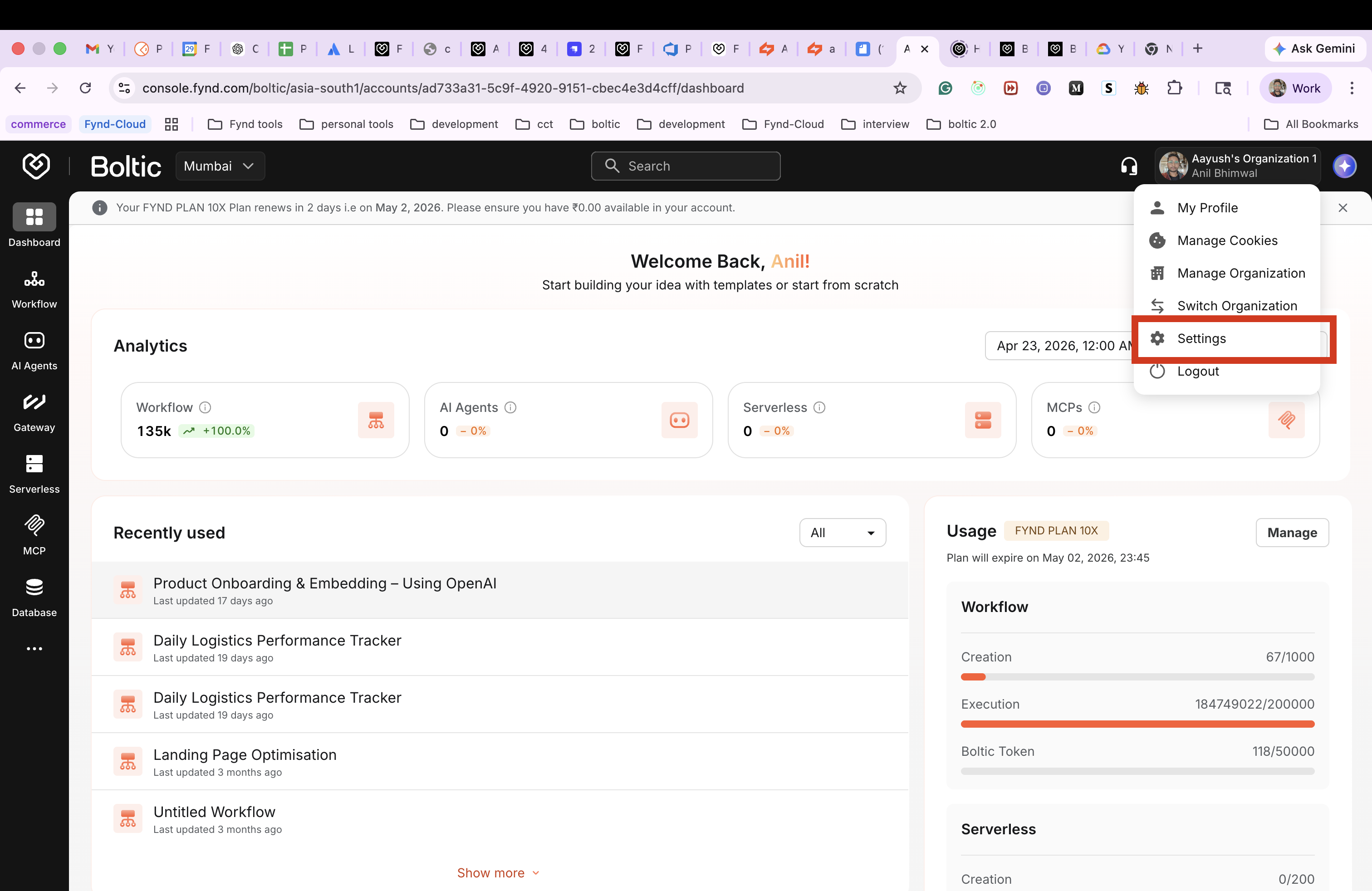
After opening Settings, you will see account-level sections in the left navigation.
Sections inside Settings
Users
Use Users to manage members who have access to your account.
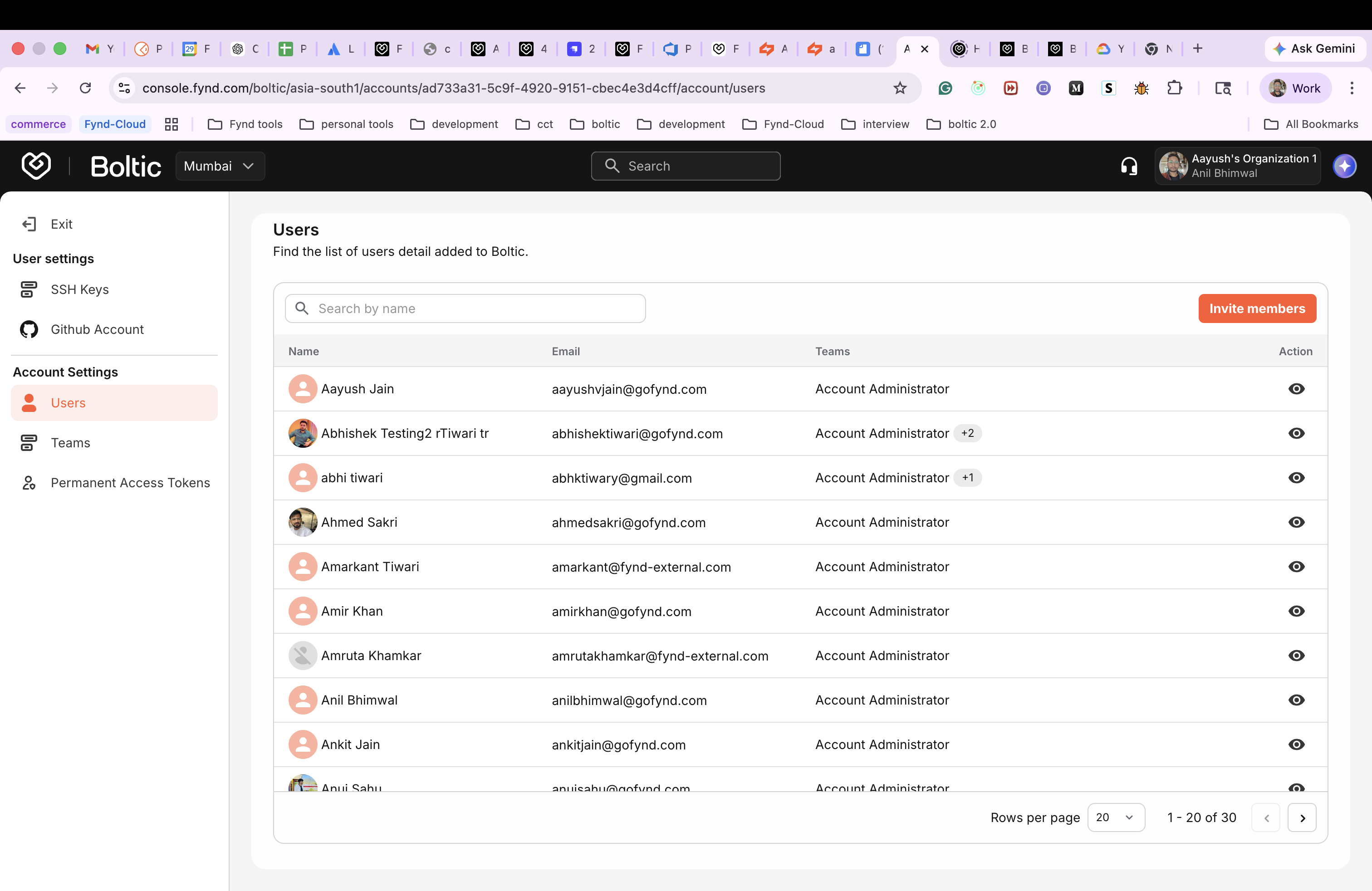
- View all current members with their email and team assignment.
- Use Invite members to add new users.
- Use the action icon on a row to inspect or manage an individual member.
Invite members flow
When inviting members:
- Open Settings > Users.
- Click Invite members.
- Enter the user details (for example, email and role/team as applicable).
- Send the invite and confirm it appears in your users list.
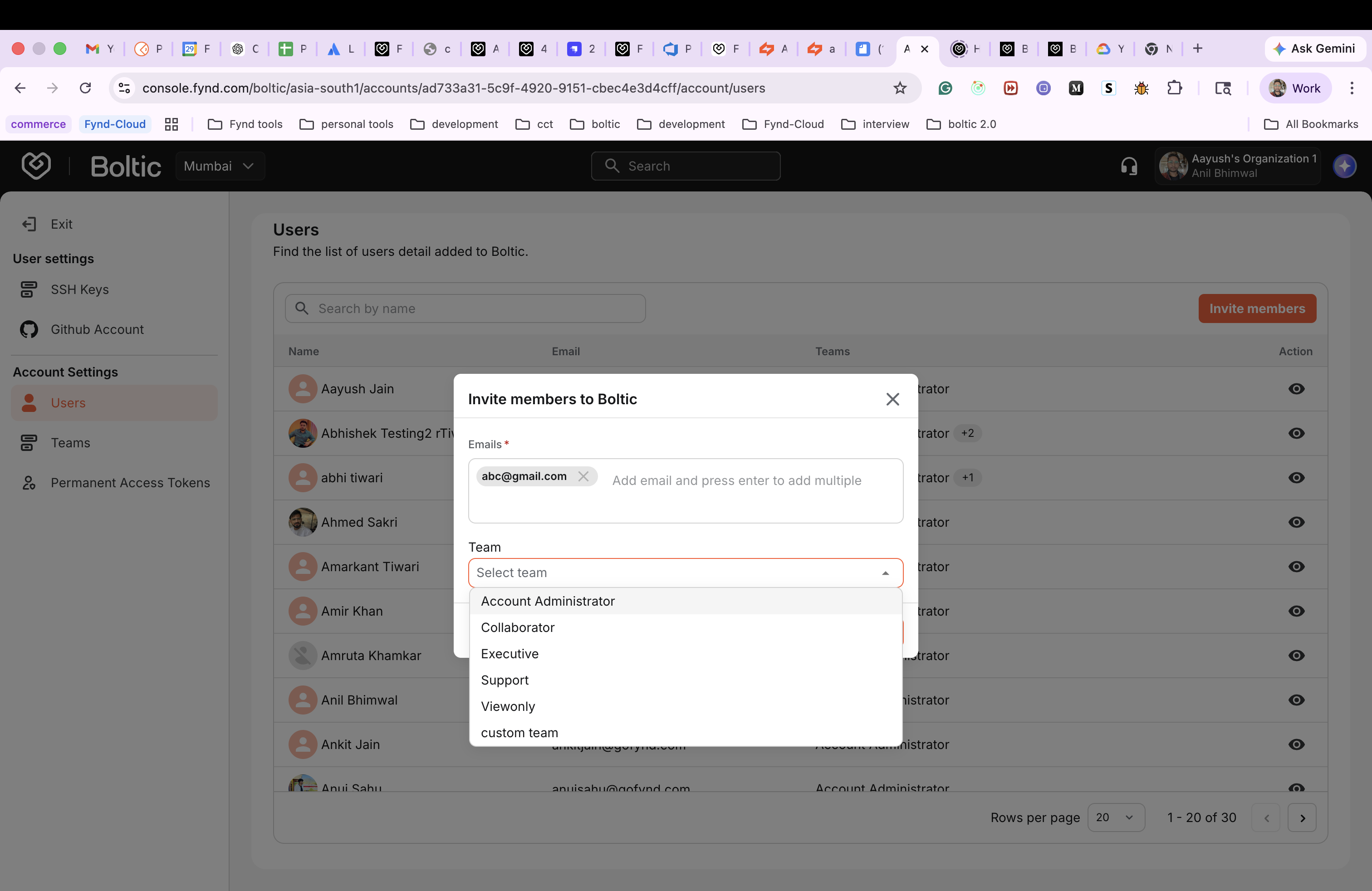
If your organization has custom access approval rules, make sure the invited user is also mapped to the correct team after the invite is accepted.
Teams
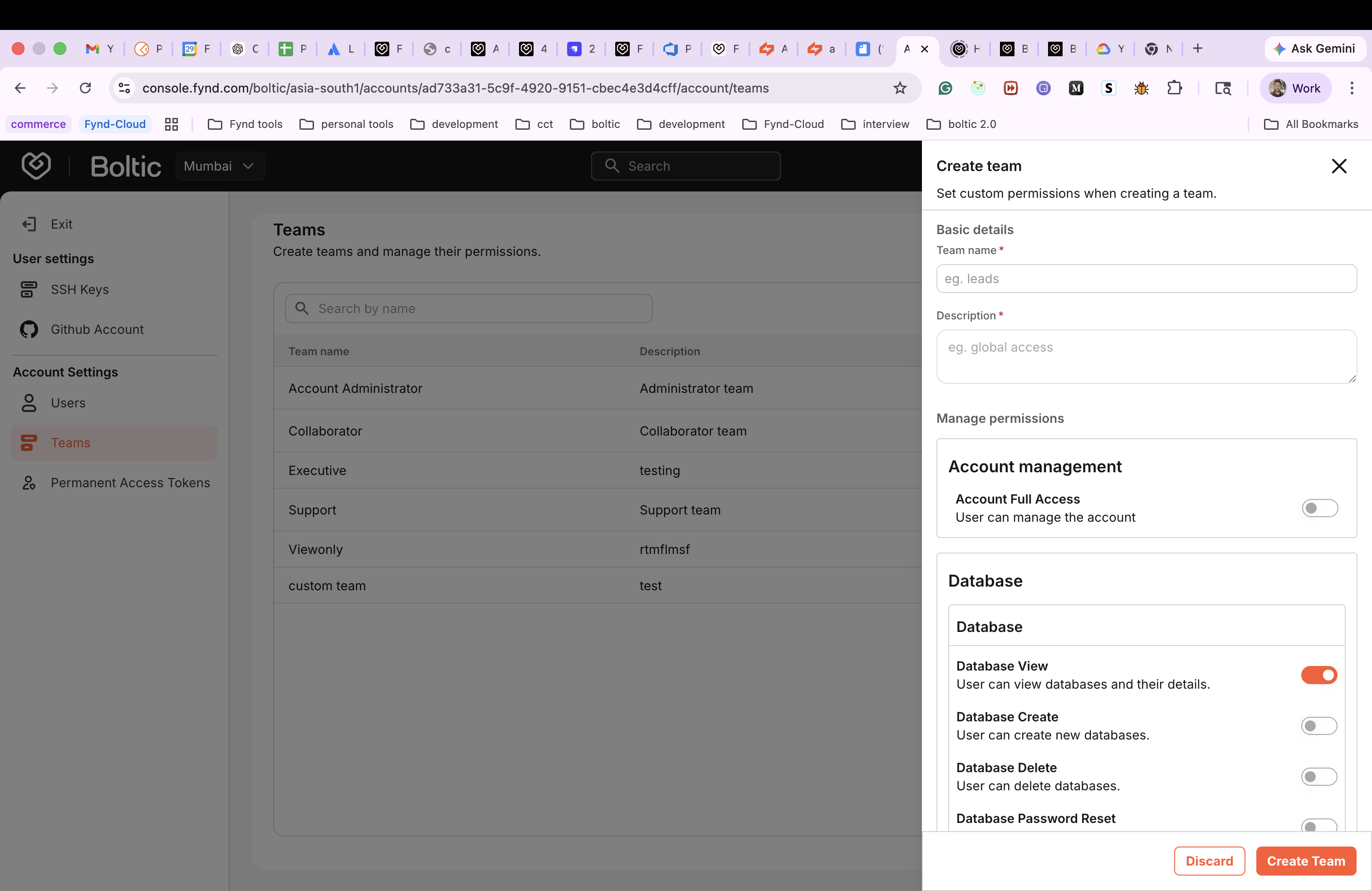
Use Teams to group users and organize permissions by responsibility.
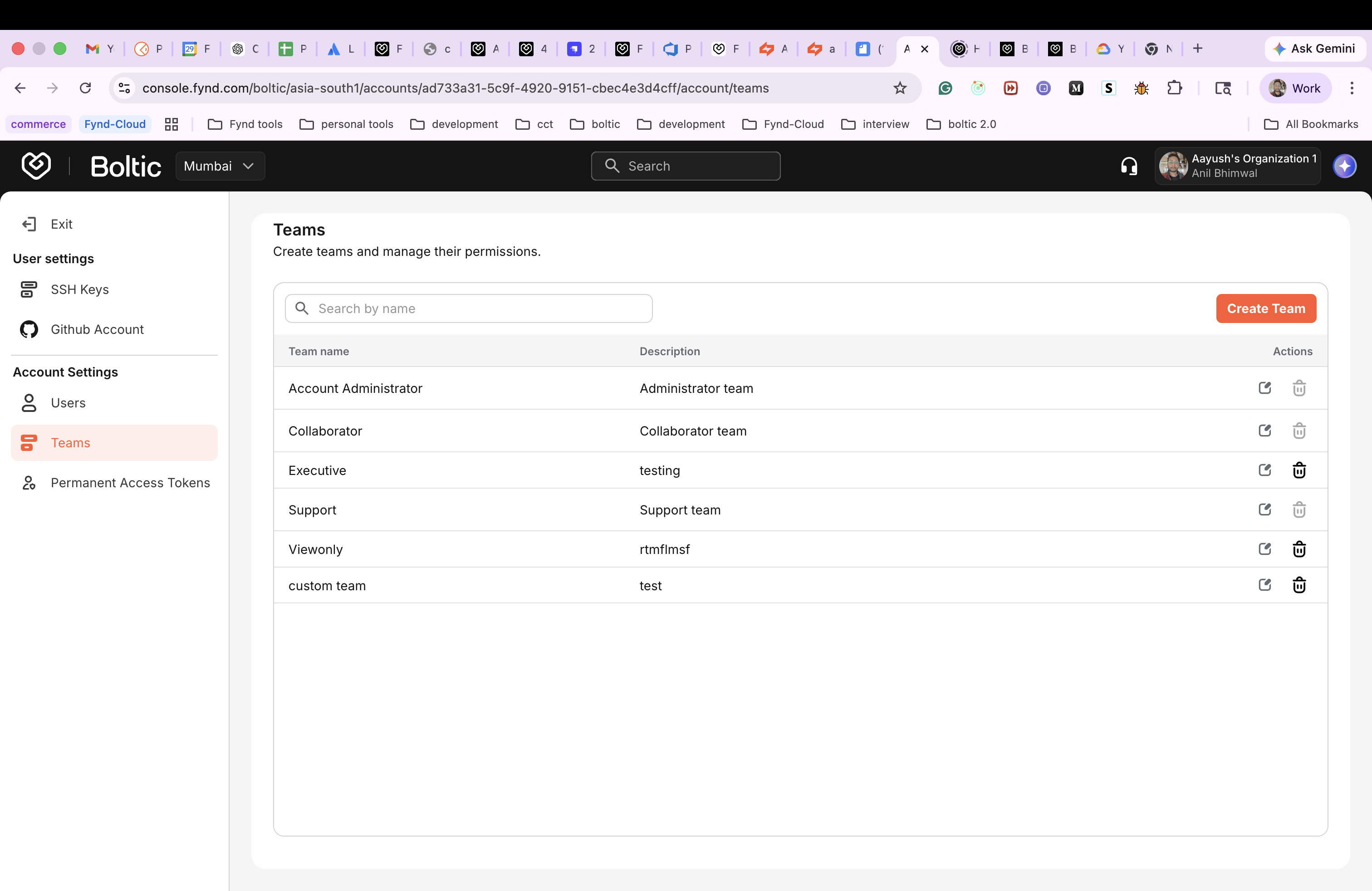
- Create teams for functional boundaries (for example, Engineering, Data, Operations).
- Add or remove users from teams to keep access aligned with ownership.
- Review team composition periodically to reduce stale access.
SSH Keys
Use SSH Keys to securely connect your Git repositories to Boltic without using passwords.
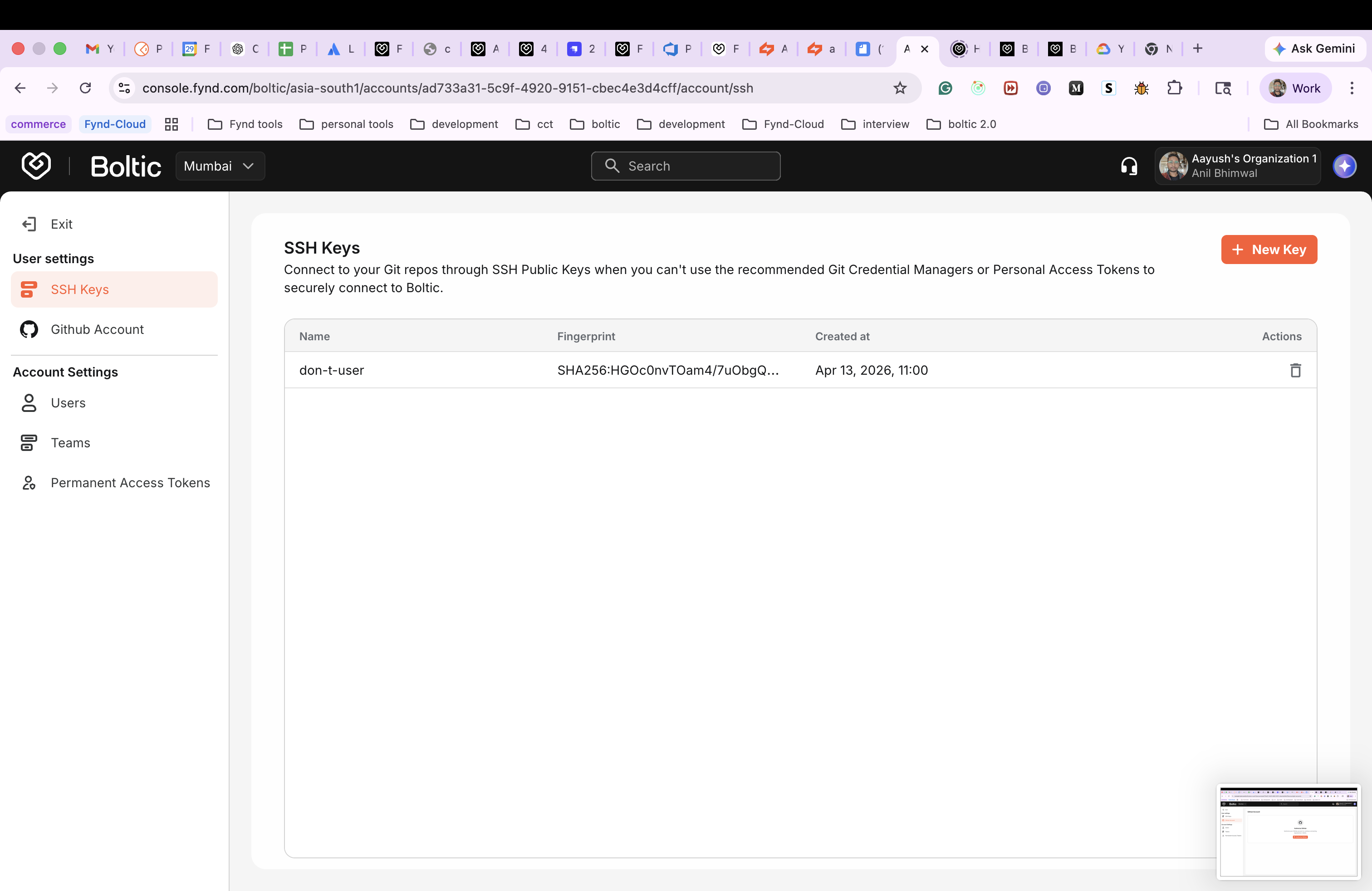
- Add a new SSH public key from the SSH Keys section.
- Use clear key names so you can identify owner/device quickly.
- Remove keys that are no longer in use.
Add SSH key flow
- Open Settings > SSH Keys.
- Click New Key.
- Enter a recognizable key name and paste your public SSH key.
- Save and verify the key appears in the table.
For detailed key generation and setup, refer to SSH Keys.
GitHub Account
Use GitHub Account to connect your GitHub identity for repository access and related account-level integrations.
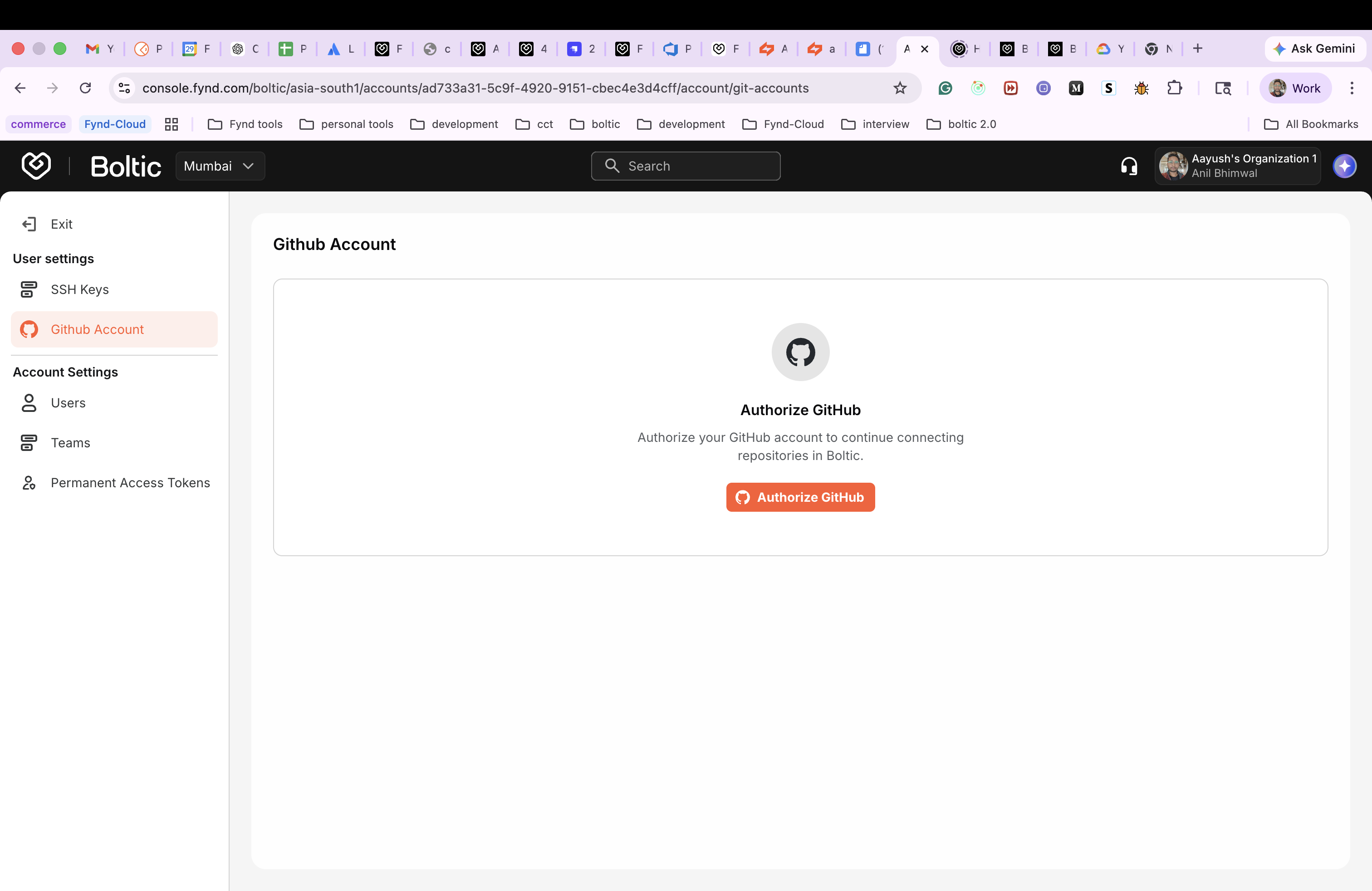
- Open Settings > GitHub Account.
- Connect or re-authorize the GitHub account when required.
- Revoke and reconnect if your organization access or permissions change.
If repository access fails after connecting GitHub, verify both your GitHub organization permissions and any account/team access settings in Boltic.
Permanent Access Tokens
Use Permanent Access Tokens when you need non-interactive access for scripts, CI pipelines, or backend tools.
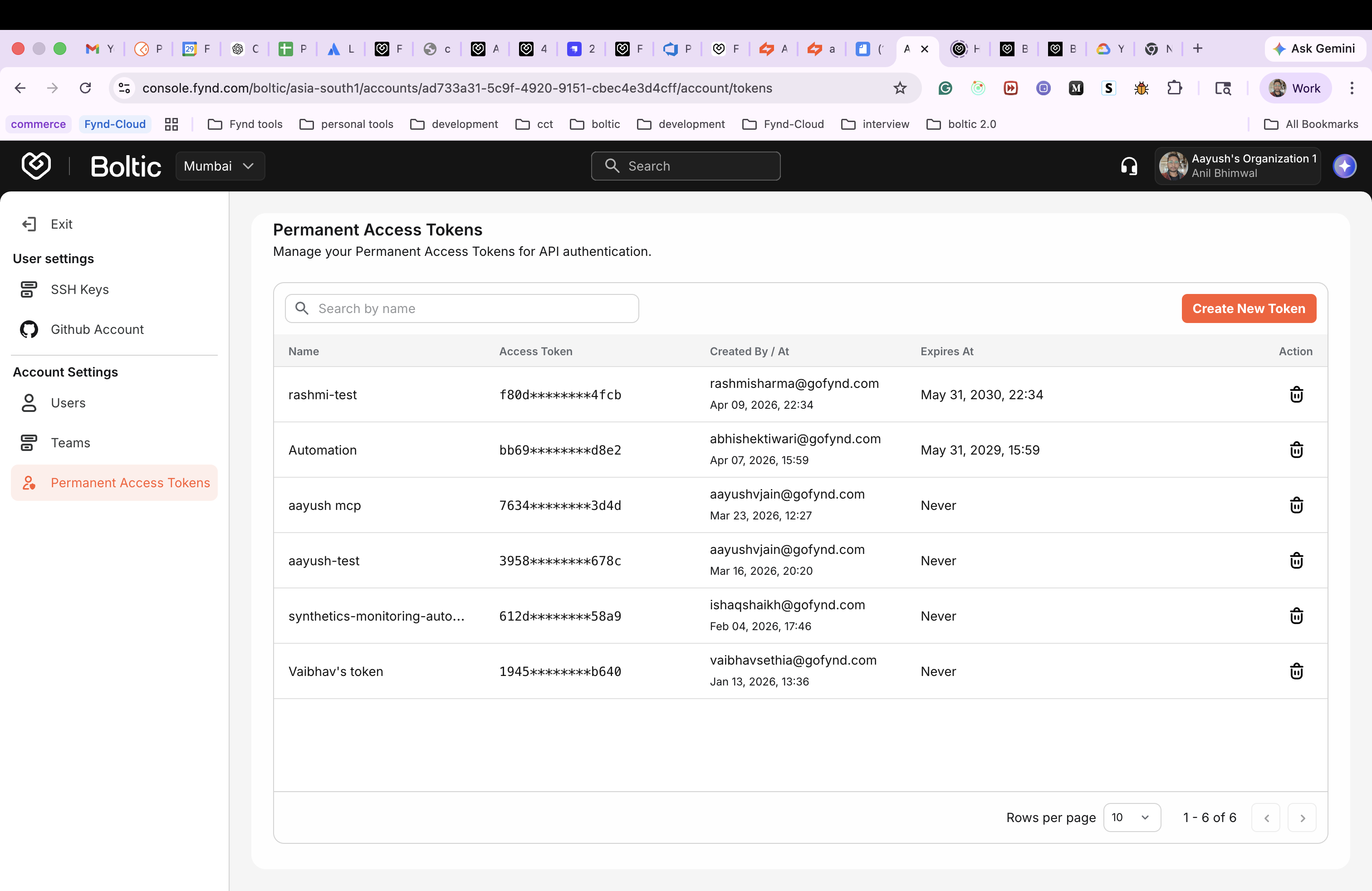
- Create tokens only for trusted automation use cases.
- Store tokens in a secure secret manager.
- Rotate or revoke tokens when no longer required.
Treat permanent tokens like passwords. Do not share them in chat, tickets, or source code. Rotate tokens immediately if exposure is suspected.
Recommended admin checklist
- Keep only active users in the account.
- Assign users to the right teams after onboarding.
- Audit SSH keys and remove unused keys.
- Verify GitHub account connection for repository workflows.
- Prefer team-based access over one-off manual access.
- Review and rotate permanent tokens on a regular schedule.